
Windows 11 updates are meant to improve security and stability, but they do not always go smoothly. In 2026, many users still run into problems like stuck downloads, failed installs, update loops, and restarts that never seem to finish.
The good news is that most Windows 11 update problems can be fixed without advanced tools. In this guide, you will learn the most practical ways to troubleshoot update issues and get your PC working again.
Also Read: How to Run Your First Python Script on Windows (Complete Beginner’s Guide)
Why Windows 11 updates fail
Windows updates can fail for several reasons:
-
Temporary network problems.
-
Corrupted update cache files.
-
Low disk space.
-
Interference from antivirus or background apps.
-
Broken update services.
-
Problems caused by recent drivers or system changes.
Sometimes the issue is not the update itself, but something on the computer that prevents the update from completing properly.
Step 1: Restart your PC
This is the simplest fix, but it often works. Restarting clears temporary memory, closes stuck processes, and gives Windows a clean start before trying the update again.
After restarting, go back to Settings > Windows Update and check for updates again.
Step 2: Check your internet connection
Windows updates need a stable internet connection. If the connection is weak or keeps dropping, the update may freeze or fail.
Try these quick checks:
-
Switch between Wi-Fi and Ethernet if possible.
-
Restart your router.
-
Pause and resume the update.
-
Avoid VPNs or proxies during the update process.
A stable connection is especially important for larger feature updates.
Step 3: Free up disk space
If your drive is low on space, Windows may not have enough room to download or install updates properly.
To free up space:
-
Delete temporary files.
-
Empty the Recycle Bin.
-
Remove unused apps.
-
Move large files to another drive or cloud storage.
-
Use Storage Sense or Disk Cleanup if available.
Windows feature updates often need more free space than people expect.
Step 4: Run Windows Update again
Sometimes the update just needs to be retried. Open:
Settings > Windows Update > Check for updates
If the update failed once, retrying after a restart or cleanup may be enough to complete it successfully.
Step 5: Run the built-in troubleshooters
Windows includes built-in troubleshooters that can detect and fix some update-related problems automatically.
To use them:
-
Open Settings.
-
Go to System > Troubleshoot > Other troubleshooters.
-
Run the Windows Update troubleshooter.
This can help fix common issues like broken services, reset components, or incorrect settings.
Step 6: Stop and restart update services
If Windows Update services are stuck, restarting them can help.
Open Services and check these services:
-
Windows Update.
-
Background Intelligent Transfer Service.
-
Cryptographic Services.
If one of them is not running correctly, restart it and try the update again.
Step 7: Clear the update cache
A damaged update cache is one of the most common causes of update errors. Clearing it can force Windows to download fresh files.
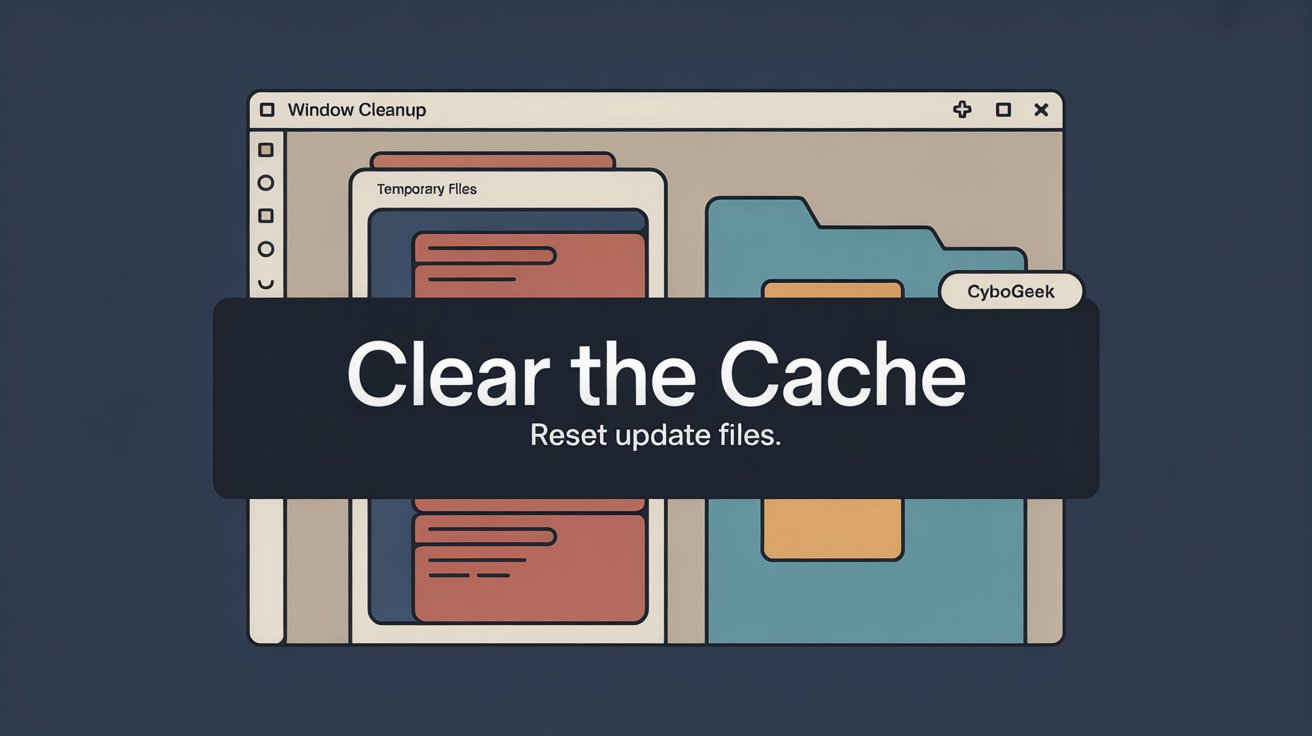
The cache is usually stored in Windows update folders that may become corrupted after a failed install. Clearing those files often fixes repeat failures or endless retry loops.
If you are not comfortable doing it manually, use the troubleshooter first. If the problem continues, a cache reset is usually the next step.
Step 8: Temporarily disable antivirus software
Third-party antivirus programs can sometimes block update files or interrupt system changes. If you use extra security software, temporarily turn it off and test the update again.
Do not leave protection off for long. Re-enable it as soon as the update is done.
Step 9: Disconnect unnecessary devices
External devices can occasionally interfere with Windows updates, especially printers, USB storage drives, and other accessories.
Try this:
-
Remove USB drives.
-
Disconnect printers.
-
Unplug extra peripherals.
-
Leave only keyboard, mouse, and monitor connected.
Then restart the update process.
Step 10: Check for driver issues
Old or broken drivers can cause Windows updates to fail, freeze, or restart repeatedly. This is especially common after major updates.
If the problem started after a driver change, consider rolling back the driver or updating it through Device Manager.
Pay attention to:
-
Graphics drivers.
-
Network drivers.
-
Storage controller drivers.
These are often involved in update stability.
Step 11: Use System Restore if needed
If the update started causing serious problems, System Restore can return your system to an earlier working state.
This is useful when:
-
Windows gets stuck after an update.
-
The desktop behaves strangely.
-
Apps stop opening correctly.
-
The system becomes unstable after a failed install.
System Restore can save time when the update has created more problems than it solved.
Step 12: Install the update manually
If Windows Update keeps failing, you may be able to install the update manually through Microsoft’s update catalog or another official package source.
This can help when the automatic updater is stuck but the update itself is otherwise healthy.
Only use trusted sources for manual installation.
Step 13: Repair system files
If system files are corrupted, Windows Update may fail repeatedly. In that case, repairing the system files can help.
A system file repair can fix underlying damage that normal update retries cannot solve.
This is a good option when:
-
Updates keep failing with different errors.
-
Windows behaves unpredictably.
-
Other repair steps do not work.
Step 14: Reset Windows Update components
If nothing else works, resetting the Windows Update components is often the strongest fix. This refreshes the parts of Windows responsible for checking, downloading, and installing updates.
It can help solve:
-
Stuck download percentages.
-
Failed install loops.
-
Error messages that keep returning.
-
Updates that never finish.
This is one of the most effective repair steps for stubborn Windows 11 update problems.
Step 15: Use Windows Recovery only if necessary
If the PC is badly affected, Windows Recovery options may be the last step. These include repair startup tools, rollback options, and recovery settings that can help restore stability.
Use this only when normal troubleshooting has not worked.
Common update errors
Windows 11 users often see problems such as:
-
Update stuck at a percentage.
-
Update failed and rolled back.
-
Restart loop after install.
-
Download never starts.
-
Update pauses unexpectedly.
-
Feature update refuses to install.
The exact message may vary, but the repair logic is usually similar: restart, free space, check services, clear cache, and repair system files if needed.
Best order to try fixes
If you want the fastest path, try fixes in this order:
-
Restart the PC.
-
Check the internet connection.
-
Free up space.
-
Run Windows Update again.
-
Run the troubleshooter.
-
Restart update services.
-
Clear the update cache.
-
Disable antivirus temporarily.
-
Check drivers.
-
Reset update components.
That order solves most everyday update problems without overcomplicating the process.
Final thoughts
Also Read: How to Create a Virtual Environment in Python (Beginner-Friendly Guide)
Windows 11 update problems can feel frustrating, but they are usually fixable. In many cases, the issue is caused by something temporary such as a bad cache, weak internet, low storage, or a stuck service.
The key is to troubleshoot in the right order instead of randomly changing settings. Once you know the common causes, fixing Windows 11 updates becomes much easier and less stressful.