

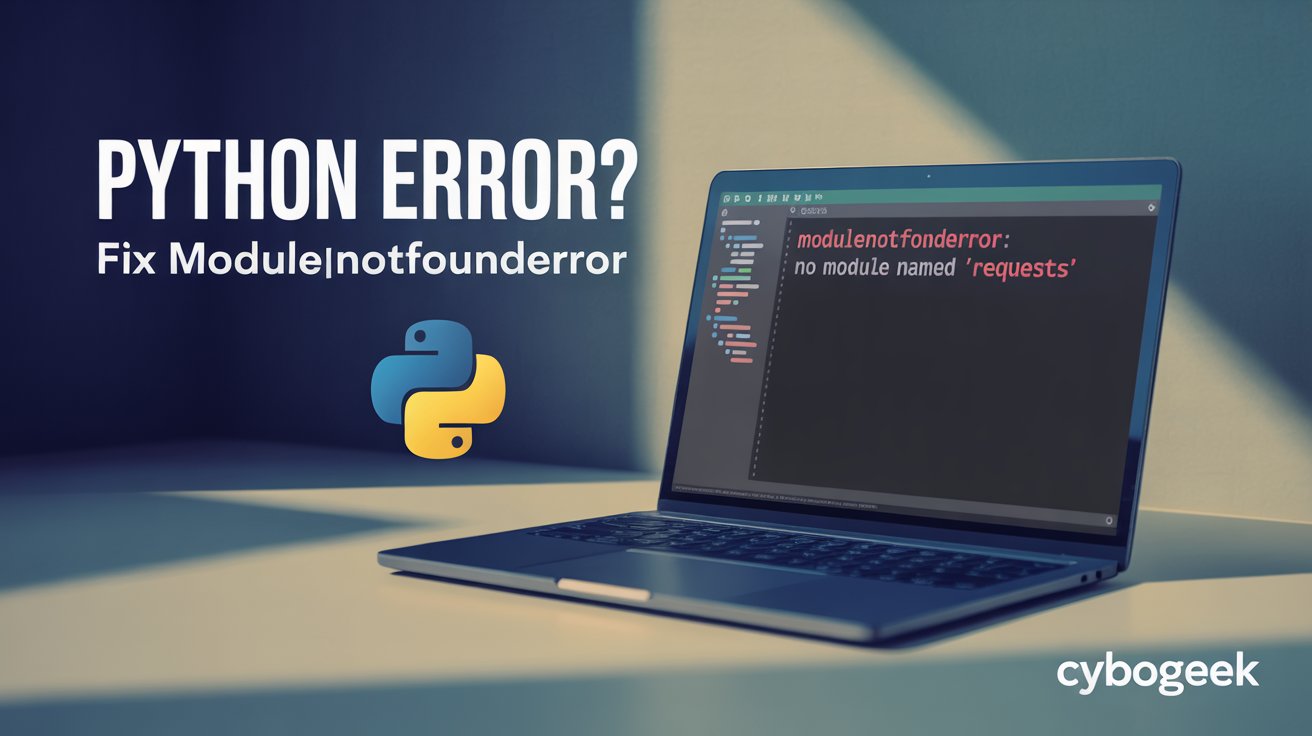
If you are learning Python on Windows, you will eventually see an error that looks like this:
ModuleNotFoundError: No module named 'requests'or
ModuleNotFoundError: No module named 'numpy'This error means Python is trying to import a module that it cannot find. The module might not be installed, it might be installed in a different Python environment, or the name might be spelled incorrectly.
The good news is that this error is almost always fixable with a few simple steps. Python community discussions, Python Packaging Authority guidance, and troubleshooting videos all point to the same core solutions: install the missing module, check spelling, and make sure you are using the correct Python environment.
This guide walks through the most common causes and the best fixes in a logical order, starting with the simplest checks and moving to environment issues only when needed.
Read This: How to Run Your First Python Script on Windows (Complete Beginner’s Guide)
What ModuleNotFoundError means
ModuleNotFoundError is a Python error that happens when you try to import a module that Python cannot find in its current environment. The error message usually includes the name of the missing module.
Examples:
ModuleNotFoundError: No module named 'requests'ModuleNotFoundError: No module named 'numpy'ModuleNotFoundError: No module named 'pandas'
The module might not be installed, or Python might be looking in the wrong place for it.
Common causes of ModuleNotFoundError
ModuleNotFoundError in Python on Windows usually happens because of one of these:
- the module is not installed,
- the module name is spelled incorrectly,
- the module is installed in a different Python environment,
- you are using multiple Python versions on the same computer,
- or you are running the script with a different Python interpreter in VS Code or another editor.
Understanding which of these is the cause helps you choose the right fix.
Fix 1: Install the missing module with pip
The most common cause of ModuleNotFoundError is that the module is simply not installed. Python does not include most third-party modules by default; they must be installed with a package manager like pip.
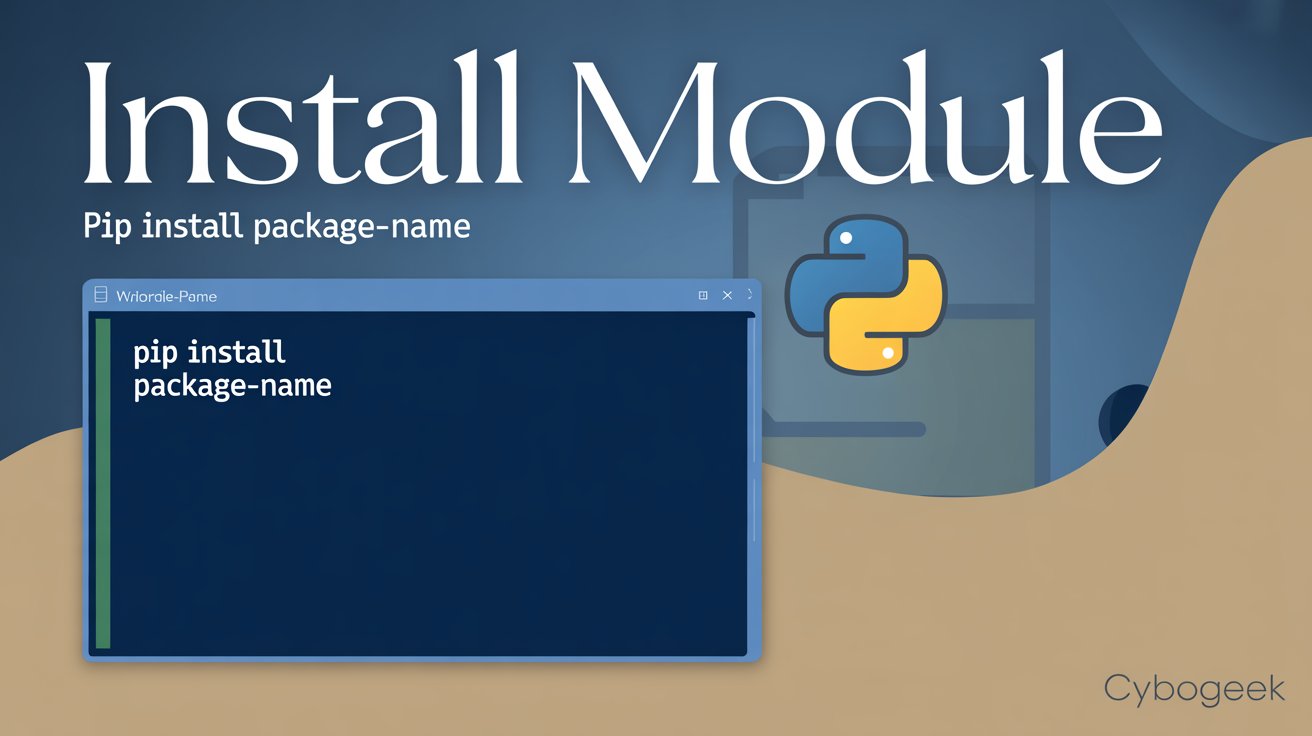
To install a missing module:
- Open Command Prompt or PowerShell.
- Type:
pip install <module-name>For example:
pip install requests

pip install numpy

pip install pandas-
Press Enter.
If pip is not recognized, try:
python -m pip install <module-name>or on Windows:
py -m pip install <module-name>This ensures you are using pip that belongs to the same Python interpreter you are using to run your script. After installing the module, run your script again and check if the error disappears.
Fix 2: Check the module name spelling
Python is case-sensitive, so the module name must match exactly. A small typo can cause ModuleNotFoundError, even if the module is installed.
For example:
import Requestsis different fromimport requestsimport NumPyis different fromimport numpyimport PANDASis different fromimport pandas
To check the correct spelling:
- Look at the error message.
- Check the official documentation for the module.
- Search the module name on PyPI (Python Package Index).
If the name is wrong in your code, correct it and try again.
Fix 3: Make sure you are using the correct Python environment
This is one of the most common causes on Windows, especially when using VS Code. If you have multiple Python versions or virtual environments, you might install the module in one environment but run the script in another.
Check Out:- How to Install Python on Windows Without Confusion (2026 Beginner Guide)
In VS Code:
- Open the Command Palette (Ctrl + Shift + P).
- Type
Python: Select Interpreter. - Choose the interpreter that matches the environment where you installed the module.
- Check the Python version shown in the bottom status bar.
In Command Prompt:
- Check which Python you are using:
-
py -0 - Check which pip you are using:
-
pip --version - If they do not match, use:
py -3.12 -m pip install <module-name>or
python -m pip install <module-name>
This ensures the module is installed for the same Python interpreter that runs your script.
Fix 4: Use a virtual environment
Using a virtual environment helps avoid environment conflicts and keeps modules organized per project. Python Packaging Authority recommends using virtual environments for every project to avoid issues like ModuleNotFoundError due to environment mismatches.

Follow the complete guide: How to Create a Virtual Environment in Python (Beginner-Friendly Guide)
To create a virtual environment:
- Open a terminal in your project folder.
- Run:
python -m venv .venv - Activate it:
- On Windows Command Prompt:
.venv\Scripts\activate.bat - On PowerShell:
.venv\Scripts\Activate.ps1 - Install the module inside the environment:
pip install <module-name> - Make sure VS Code or your editor is using this environment.
Fix 5: Upgrade pip and Python
Sometimes pip is outdated, which can cause installation issues or compatibility problems with certain modules. Upgrading pip and using a recent Python version can help avoid these problems.

How to Fix “pip Is Not Recognized” in Windows
To upgrade pip:
python -m pip install --upgrade pip
or on Windows:
py -m pip install --upgrade pipTo check your Python version:
python --versionor:
py --versionIf you are using an older version of Python, consider upgrading to a newer version.
Fix 6: Check if the module is actually installed
If you are not sure whether the module is installed, you can check using pip.

To check:
pip listThis shows all installed packages. Look for the module name in the list.
You can also check a specific package:
pip show <module-name>If it is not in the list, install it.
Fix 7: Install the module in VS Code terminal
If you are using VS Code, the easiest way to avoid environment issues is to install the module directly from the integrated terminal, which is already configured for the selected Python interpreter.

To do this:
- Open VS Code.
- Open the Integrated Terminal (Ctrl + `).
- Make sure the correct Python interpreter is selected (check the bottom status bar).
- Run:
pip install <module-name>
This ensures the module is installed for the interpreter VS Code is using.
Fix 8: Uninstall and reinstall the module
If the module is installed but still not found, it may be corrupted. Uninstalling and reinstalling can fix this.
To do this:
- Uninstall the module:
pip uninstall <module-name> - Reinstall it:
pip install <module-name> - Run your script again and check if the error disappears.
Best order to try the fixes
To get the fastest result, use this order:
- Install the missing module with pip.
- Check the module name spelling.
- Check if the module is installed using
pip list. - Make sure you are using the correct Python environment.
- Use a virtual environment for your project.
- Upgrade pip and Python.
- Install the module in the VS Code terminal.
- Uninstall and reinstall the module.
This order starts with the most common and simplest fixes.
Common mistakes to avoid
These mistakes make ModuleNotFoundError harder to fix:
- installing the module in one environment but running the script in another,
- using pip instead of pip for the correct Python version,
- ignoring the Python interpreter selected in VS Code,
- assuming the module is installed when it is not,
- and trying to install system packages instead of Python packages.
The key is to always match the installation environment with the running environment.
Final thoughts
ModuleNotFoundError in Python is one of the most common errors beginners face, but it is also one of the easiest to fix once you understand the cause. In most cases, the module is not installed, the name is spelled incorrectly, or the module is installed in the wrong environment. Python community discussions and Python Packaging Authority guidance consistently point to these same fixes.
If you follow the steps in order, you can usually solve this error quickly without reinstalling Python or changing your code structure.