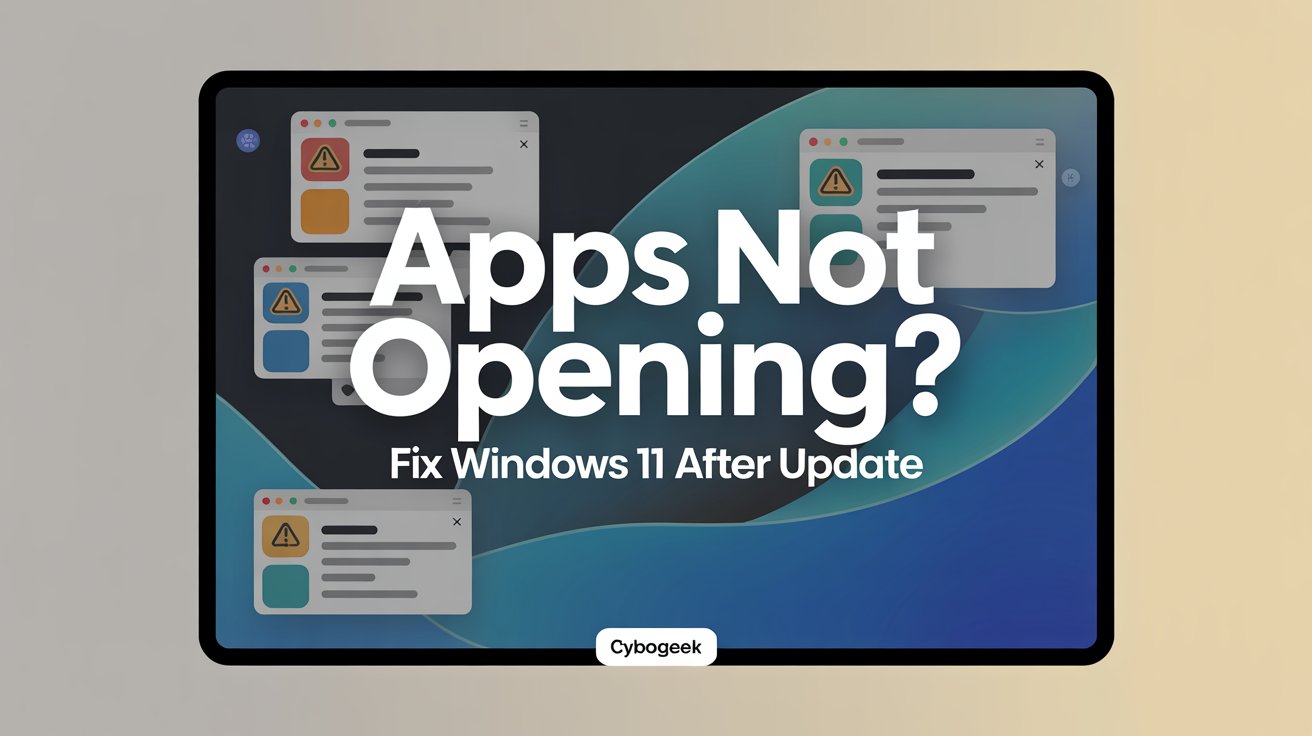
A Windows 11 update is supposed to improve security, stability, and performance, but sometimes it creates a new problem instead: apps suddenly stop opening. You click an icon; nothing happens. A window flashes and closes. A Microsoft Store app hangs on launch. Or a desktop program that worked yesterday refuses to open after the latest update.
This problem can affect both Microsoft Store apps and traditional desktop programs, but the cause is not always the same. Microsoft’s support guidance for app problems focuses on checking Windows updates, updating Microsoft Store, and reinstalling apps when needed, while Windows also provides built-in repair and reset options for many apps through Settings. That means the best fix depends on whether the issue affects one app, a group of apps, or almost everything on the system.
The encouraging part is that most post-update app problems are fixable without reinstalling Windows. In many cases, the issue comes from a damaged cache, a broken app registration, a temporary conflict introduced by the update, or corrupted system files that can be repaired with built-in tools. Microsoft support articles and troubleshooting guidance consistently point to a pattern of fixes: restart, update, repair, reset, clear Store cache, and repair the system only if simpler steps fail.
This guide walks through a full step-by-step recovery path. Start at the top and move downward. If one fix works, stop there. If not, continue to the next step.
Read More:- How to Fix Windows Search Not Working in 2026: Complete Step-by-Step Guide
What this issue looks like
When Windows 11 apps stop opening after an update, the symptoms can vary:
- The app icon responds, but the window never appears.
- The app opens for one second and then closes.
- Microsoft Store apps refuse to launch.
- A desktop program shows a loading cursor and then disappears.
- The app launches only in Safe Mode.
- Multiple apps fail after the same update.
- Start menu apps, Settings, or built-in tools stop responding.
If the problem affects only one app, the fix is often local to that app. If many apps are affected, the cause is more likely tied to the update itself, system files, user profile corruption, or startup conflicts.
Why apps stop opening after a Windows update
There are several common reasons this happens:
- The update did not finish cleanly.
- The app itself became corrupted.
- Microsoft Store app data or cache broke during the update.
- System files were damaged.
- A startup app or background service is conflicting with normal app launches.
- Date, time, region, or account sync settings are incorrect.
- A recent update introduced a bug affecting certain file or cloud-handling scenarios.
For example, Windows Central reported that Microsoft identified a 2026 Windows 11 issue where some apps became unresponsive or threw errors when opening or saving files in cloud-backed storage such as OneDrive or Dropbox. In that case, the behavior was update-related rather than a random app failure.
That is why the best troubleshooting strategy is systematic, not random.
Fix 1: Restart the PC first
It sounds basic, but restart the computer before changing anything else. Some updates finish configuration tasks only after a proper reboot, and temporary launch failures can disappear once Windows clears stuck background processes. Microsoft’s Store app troubleshooting page also starts with the simplest possible step: close and reopen the app, then check that Windows is fully updated.
After restarting:
- Try opening the affected app again.
- Try launching it from Start and from its desktop shortcut.
- If it is a Store app, open Microsoft Store and see if that also behaves normally.
If the problem remains, move on.
Fix 2: Check for pending Windows updates
Sometimes an app breaks because the first update installed incompletely, and a follow-up patch is already available. Microsoft recommends confirming that Windows is fully updated when troubleshooting app problems.
Go to:
Start > Settings > Windows Update > Check for updates
Install:
- regular updates,
- security updates,
- and optional updates if they are clearly relevant to drivers or system stability.
Then restart and test the apps again.
Fix 3: Repair the affected app in Settings
Windows 11 includes a built-in repair option for many apps. Microsoft’s support article specifically explains that you can repair apps and programs through Settings > Apps > Installed apps without reinstalling them.
To repair an app:
- Open Settings.
- Go to Apps > Installed apps.
- Find the app that will not open.
- Click the three-dot menu next to it.
- Select Advanced options.
- Click Repair.
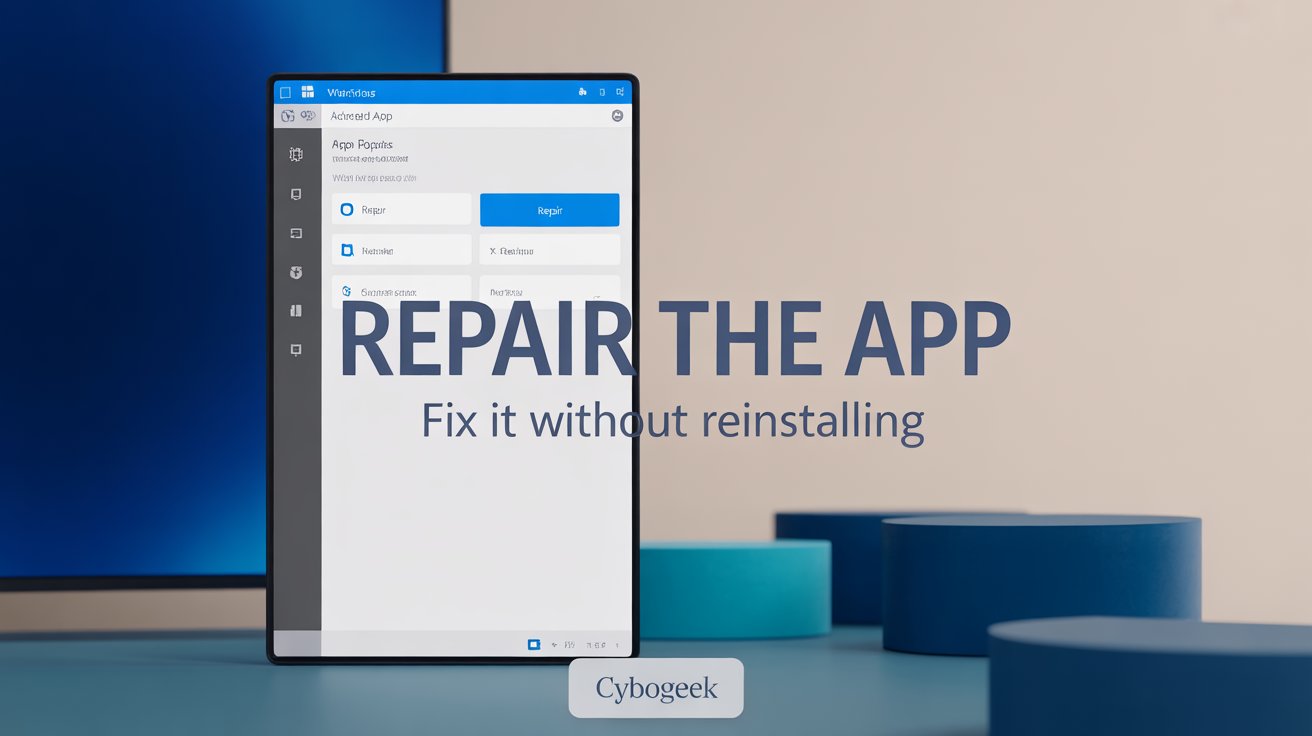
This step is ideal when:
- one app is broken,
- the issue started recently,
- and you want to preserve the app’s data and settings.
If Repair does not help, continue to Reset.
Fix 4: Reset the app
If repairing the app does not work, Windows also offers a Reset option. Microsoft notes that reset is the next step when repair is unavailable or fails to solve the problem.
Go to the same place:
Settings > Apps > Installed apps > [app] > Advanced options
Then click:
- Terminate first if the app is stuck,
- Repair,
- and if needed,
- Reset.
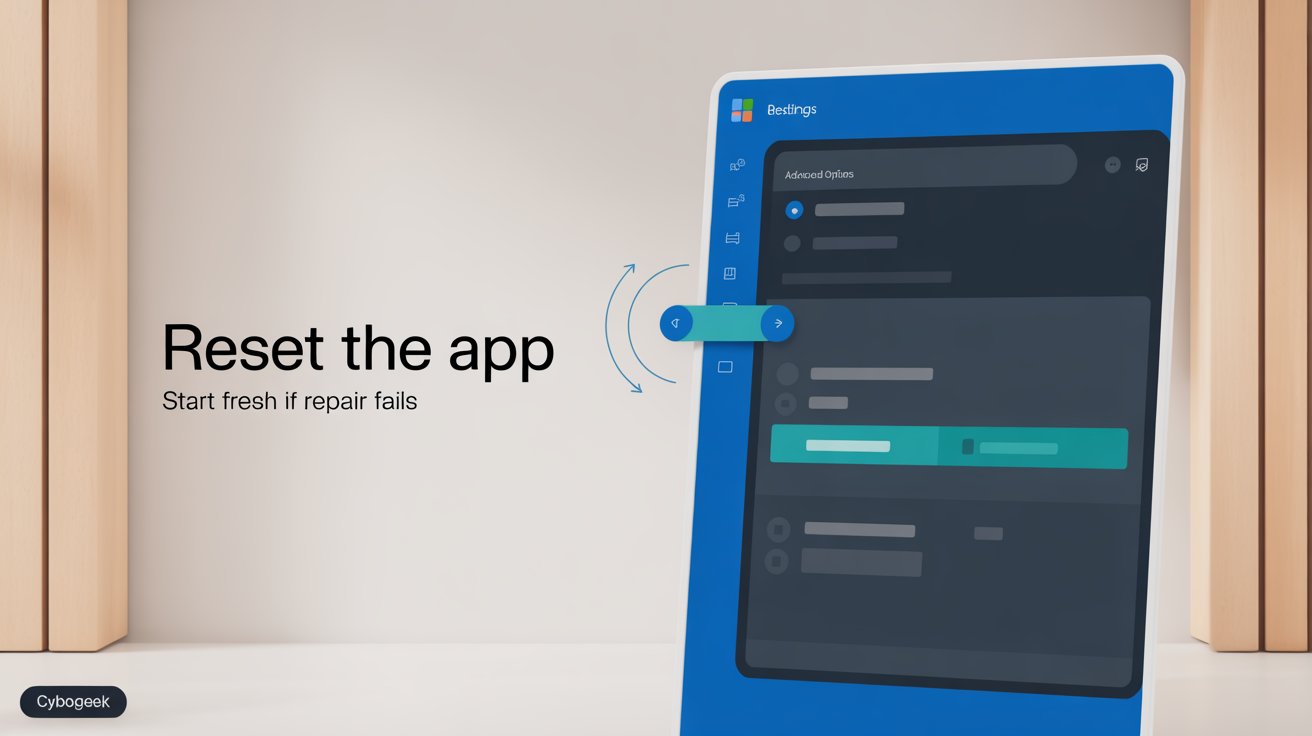
Resetting removes the app’s internal data and gives it a clean start, which often solves post-update launch failures.
Fix 5: Update Microsoft Store and Store apps
If the problem affects built-in apps or Store apps, make sure Microsoft Store itself is updated. Microsoft’s official guidance for app problems specifically recommends opening Microsoft Store, going to Library, and selecting Get updates.
This matters because:
- Store app dependencies may be outdated,
- app framework components may not match the new Windows build,
- and built-in apps may require post-update refreshes.
To do this:
- Open Microsoft Store.
- Click Library.
- Select Get updates.
- Let updates install.
- Restart the PC.
This is a low-risk step and often worth doing early.
Fix 6: Clear the Microsoft Store cache
A corrupted Store cache can break app launches, downloads, and app updates. While Microsoft’s support page focuses on app reinstall and Store updating, Windows troubleshooting workflows commonly include clearing the Store cache with WSReset.exe, especially when Store apps stop behaving correctly.
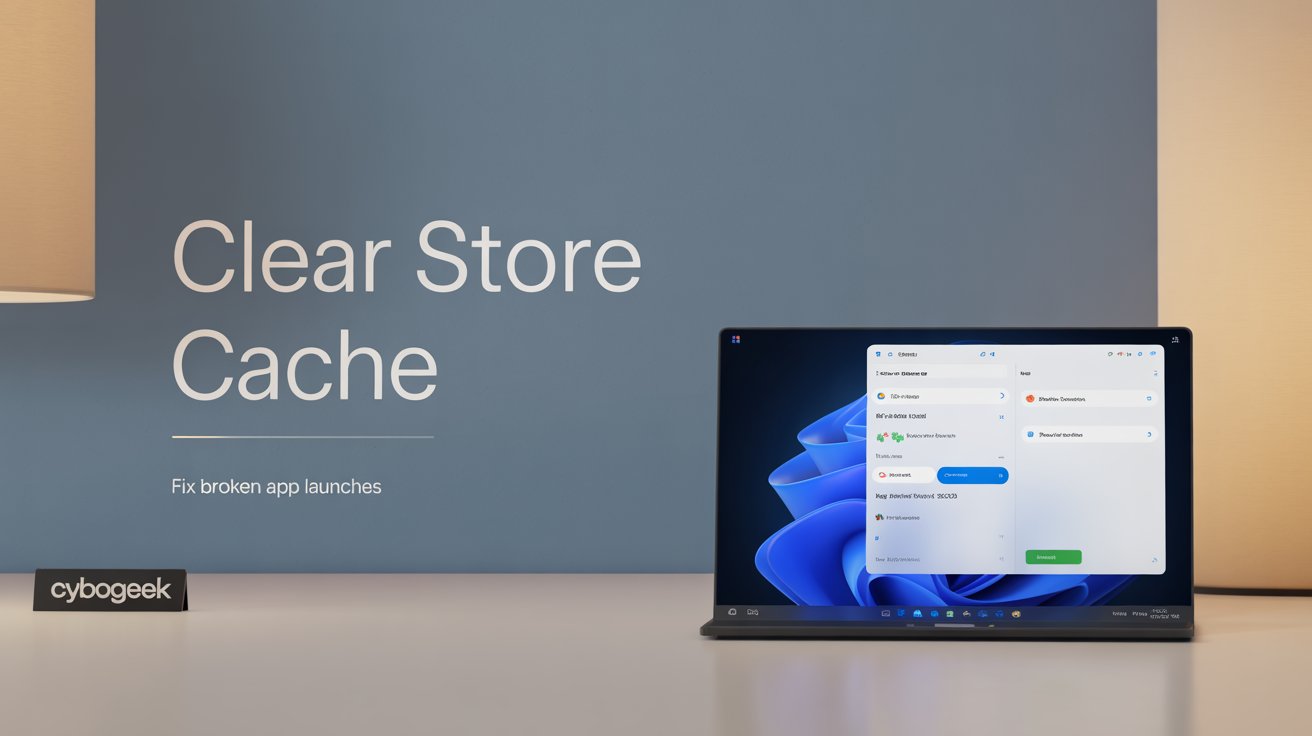
To reset the Store cache:
- Press Windows + R.
- Type
WSReset.exe. - Press Enter.
- Wait for the process to complete.
A blank Command Prompt-style window may appear briefly, then Microsoft Store should reopen automatically. This fix is especially useful if:
- Store apps do not open,
- Store downloads fail,
- or Store apps crash right after launching.
Fix 7: Check date, time, and region settings
This sounds unrelated, but it can matter more than people expect. Troubleshooting guides for Windows 11 app launch issues often include checking that the date, time, and region are correct, because incorrect system time can interfere with app authentication, Store verification, and account-linked services.
To check:
- Open Settings.
- Go to Time & language > Date & time.
- Turn on Set time automatically.
- Turn on Set time zone automatically if appropriate.
- Click Sync now.
- Confirm the Region setting matches your actual location.
This fix is quick, harmless, and worth testing before deeper repairs.
Fix 8: Run system file repair tools
If multiple apps fail after an update, the problem may be larger than the apps themselves. Corrupted system files can prevent app frameworks, permissions, or launch components from working correctly. Microsoft community troubleshooting threads and Windows repair guidance often recommend SFC and DISM for these broader failures.
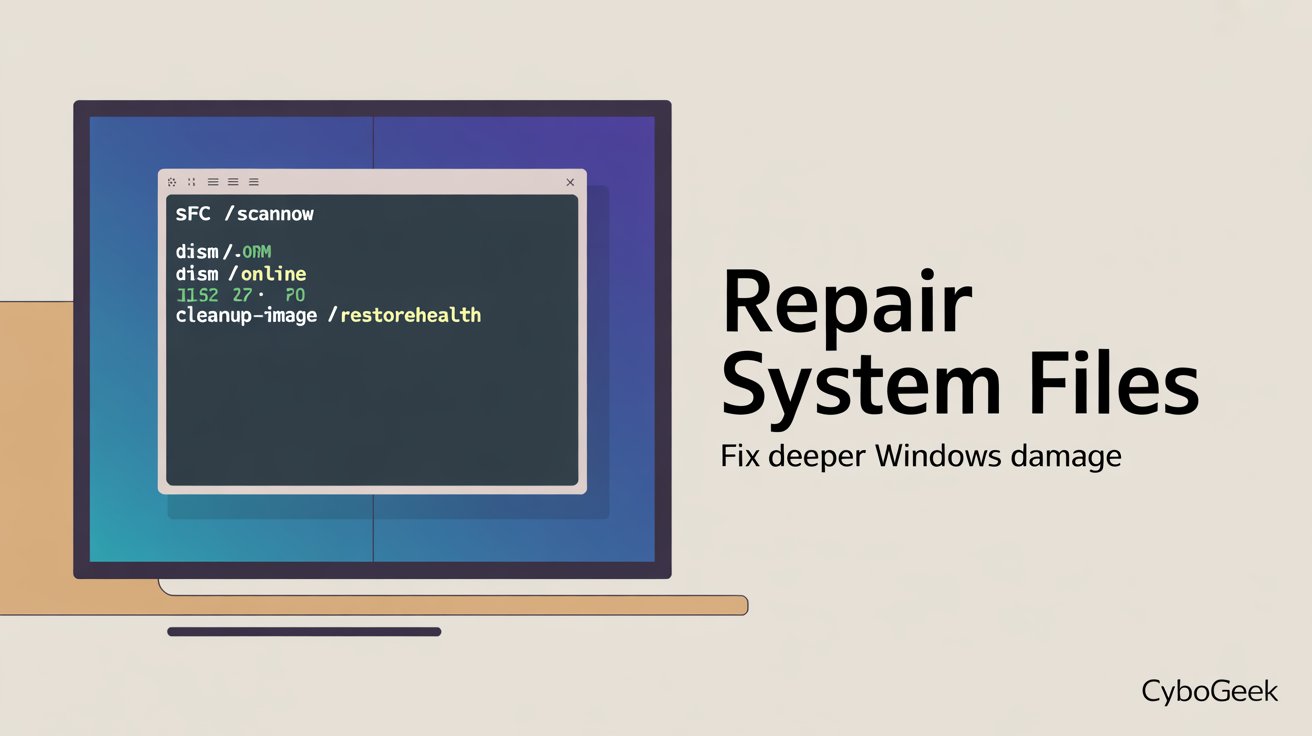
Open Windows Terminal or Command Prompt as Administrator, then run:
sfc /scannowAfter that finishes, run:
DISM /Online /Cleanup-Image /RestoreHealthThese tools:
- scan Windows for damaged system files,
- repair the operating system image,
- and restore missing or corrupted components.
Restart the PC afterward and test the apps again.
Fix 9: Test in Safe Mode or Clean Boot
If apps open in Safe Mode but not during a normal startup, a third-party service, startup app, or driver is probably interfering. Microsoft support discussions for severe “nothing opens” behavior frequently suggest using Safe Mode, disabling startup apps, and performing a Clean Boot to isolate conflicts.
Safe Mode helps answer an important question: Is Windows itself broken, or is another program blocking normal app launches?
Try this if:
- multiple apps fail,
- File Explorer behaves strangely,
- or the issue began after installing drivers, antivirus tools, or system utilities.
If Safe Mode works, start disabling nonessential startup items and test again in normal mode.
Fix 10: Reinstall the affected app
If one app still will not open, reinstalling it may be the fastest path. Microsoft’s official Store guidance includes reinstalling apps from the Microsoft Store Library when other fixes do not work.
For Microsoft Store apps:
- Open Microsoft Store.
- Go to Library.
- Find the app.
- Reinstall it.
For desktop programs:
- Uninstall the app from Installed apps or Programs and Features,
- restart the PC,
- then install the latest version from the official source.
This is especially useful when:
- the app alone is broken,
- the app files may have been damaged during the update,
- or the app depends on updated runtimes or frameworks.
Fix 11: Check whether the update introduced a known bug
Sometimes the update really is the cause. In early 2026, Microsoft acknowledged a Windows 11 issue affecting some applications that became unresponsive or errored when opening or saving files to cloud-backed storage such as OneDrive or Dropbox. In Outlook-related cases, Microsoft’s workaround included moving PST files out of OneDrive.
So ask:
- Did the problem start immediately after a specific update?
- Does it affect cloud-related apps?
- Does it affect only apps that open certain file types?
- Are other users reporting the same bug?
If yes, the fix may be a workaround or later patch rather than a local app reset.
Fix 12: Try a new user profile or System Restore
If apps still will not open, the issue may be tied to the current user profile rather than Windows as a whole. Microsoft Learn community guidance suggests testing with a new user account to see whether the problem persists there. If apps work in the new account, the original profile may be damaged.
You can also consider System Restore if:
- the issue began immediately after an update,
- several apps broke at once,
- and other fixes failed.
These are later-stage fixes, but they are much less drastic than reinstalling Windows.
Best troubleshooting order
If you want the shortest practical path, use this order:
- Restart the PC.
- Check for pending Windows updates.
- Repair the affected app.
- Reset the app if needed.
- Update Microsoft Store and Store apps.
- Clear the Store cache.
- Check date, time, and region.
- Run
sfc /scannow. - Run
DISM /Online /Cleanup-Image /RestoreHealth. - Test in Safe Mode or Clean Boot.
- Reinstall the app.
- Check for a known update bug, new profile, or System Restore.
This sequence starts with simple, low-risk fixes and moves toward deeper recovery only when necessary.
Common mistakes to avoid
A few mistakes make this issue harder than it needs to be:
- reinstalling Windows too early,
- resetting apps before trying Repair,
- ignoring Store updates,
- skipping system file checks when many apps are affected,
- assuming every broken app means malware,
- and forgetting to test whether the issue is limited to one user account.
The faster you identify whether the issue affects one app, Store apps, or all apps, the easier it becomes to choose the right fix.
Also Read:- How to Fix Windows 11 Update Problems in 2026
Final thoughts
When Windows 11 apps stop opening after an update, it usually feels worse than it is. The problem often comes from a repairable mismatch between the updated system and app data, Store components, or system files, not from permanent damage. Microsoft’s own support flow shows that app repair, Store updating, reinstalling, and system repair are the normal recovery tools for this kind of issue.
So start simple. Repair first. Reset only when needed. Use SFC and DISM if the problem is wider than one app. And if the issue began right after a known update, consider the possibility that the bug is real and not just something wrong with your PC.