A slow Windows laptop can make simple tasks feel frustrating. Apps take longer to open, windows freeze for a second, boot times feel too long, and even typing can feel laggy. The good news is that you do not need to install any new software to fix most of these problems.
Microsoft’s official guidance for improving PC performance in Windows is based entirely on built-in settings and system tools. It includes steps like disabling startup programs, cleaning up disk space, reducing visual effects, adjusting power settings, and restarting the PC regularly. These are the same methods used in 2026 performance guides and troubleshooting videos.
This guide walks through the best performance fixes in a simple, step-by-step order. You will not install anything. You will not change your files. You will simply adjust Windows settings, clean unnecessary data, and optimize how the system uses resources.
Check out the previous post: How to Fix Wi‑Fi Disconnecting Randomly on Windows 11
Why Windows laptops get slow over time
A Windows laptop can become slower for several reasons that are not always obvious:
- too many apps starting automatically when the PC boots,
- background processes using CPU and memory,
- power plan set to save battery instead of performance,
- visual effects and animations slowing aging hardware,
- temporary files and junk filling the disk,
- storage running nearly full,
- outdated Windows version or drivers,
- or background apps that keep running even when you are not using them.
That is why the best approach is to clean up the system gradually, starting with the easiest fixes first.
Fix 1: Restart your laptop
It sounds simple, but restarting is one of the most effective first steps. Restarting clears memory, stops stuck processes, and gives Windows a fresh start. Many users leave their laptops running for days or weeks, which can cause slowdowns over time. Microsoft’s official PC performance tips include restarting as a basic maintenance step.
To restart properly:
- Save your work.
- Close all open apps.
- Click Start.
- Select Power.
- Choose Restart.
After restarting, test whether the laptop feels faster during simple tasks like opening the Start menu, opening File Explorer, or launching an app.
Fix 2: Disable unnecessary startup apps
Startup apps are programs that launch as soon as Windows starts. They can slow down boot time and keep running in the background even when you do not use them. Microsoft’s performance guidance specifically recommends disabling startup apps that are not essential.
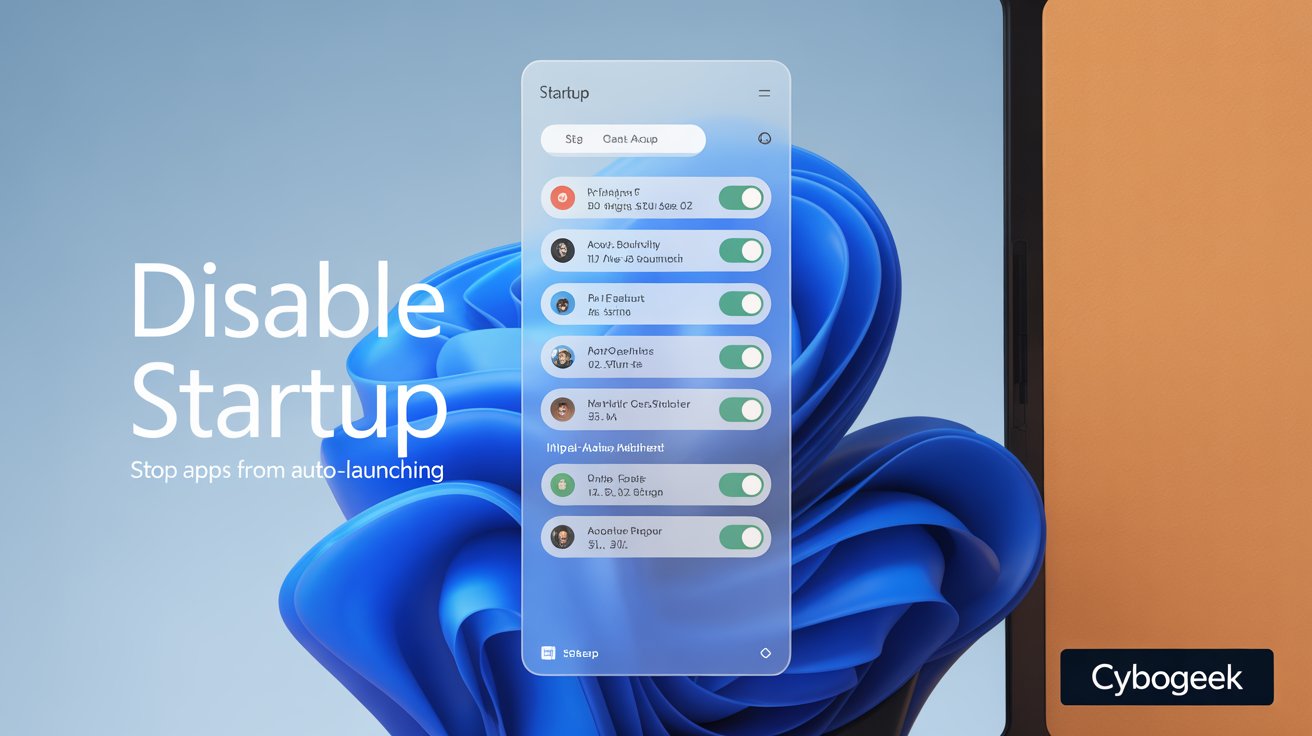
To disable startup apps:
- Press Ctrl + Shift + Esc to open Task Manager.
- Click the Startup apps tab.
- Review the list of apps.
- Right-click apps you do not need at startup.
- Choose Disable.
Focus on apps like:
- cloud storage sync tools you do not use,
- chat apps you rarely open,
- updaters for apps you use infrequently,
- and media utilities you do not need at boot.
Disable only apps you recognize. If you are unsure, search the app name online or leave it enabled.
Fix 3: Uninstall apps you never use
Unused apps take up storage space and can run background tasks. Microsoft’s official performance tips include uninstalling apps you do not use as a direct step to improve performance.
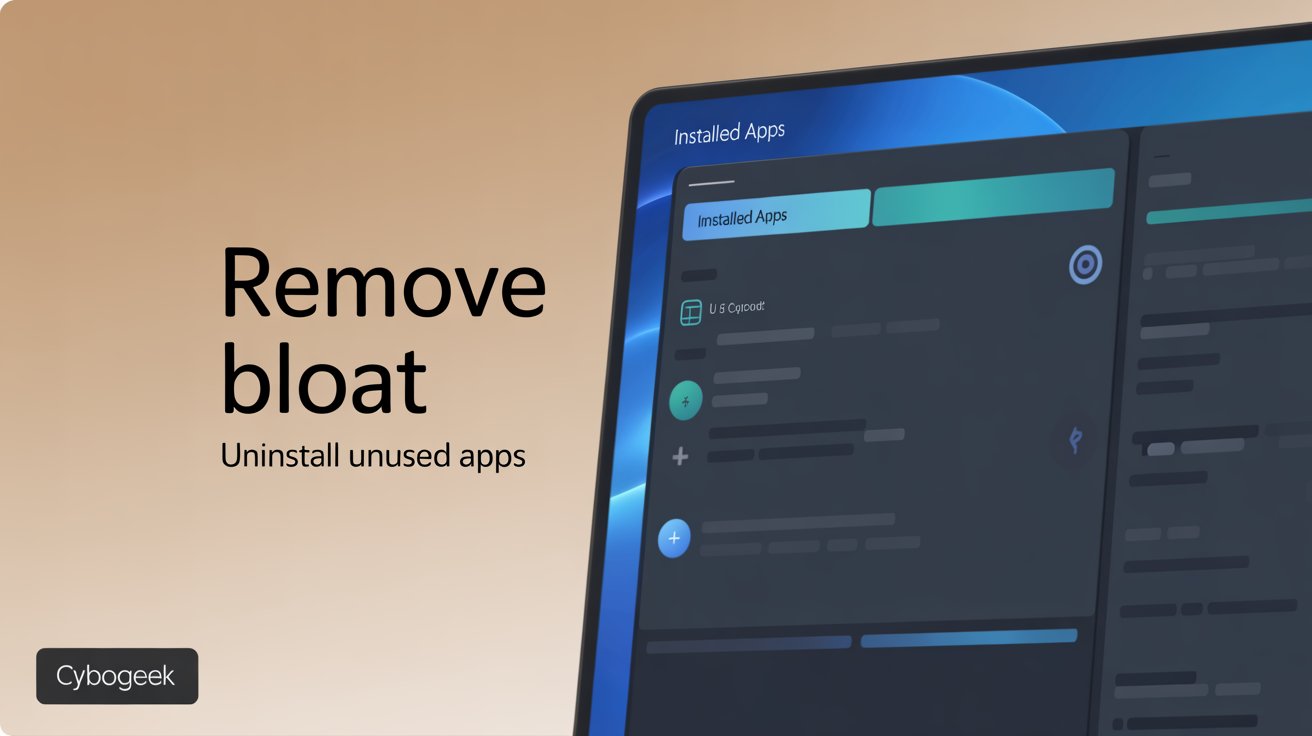
To uninstall apps:
- Open Settings.
- Go to Apps > Installed apps.
- Find apps you no longer use.
- Click the three-dot menu next to each app.
- Select Uninstall.
Apps that are good candidates for removal:
- old games you do not play,
- trial software,
- duplicate apps with similar functions,
- apps you installed once and never opened again.
Each removed app frees space and reduces potential background activity.
Fix 4: Turn on Storage Sense and clean temporary files
Temporary files, cached data, and leftover installer files can take up gigabytes of space. When your drive is near full, Windows performance drops. Microsoft officially recommends enabling Storage Sense to automatically clean unnecessary files.
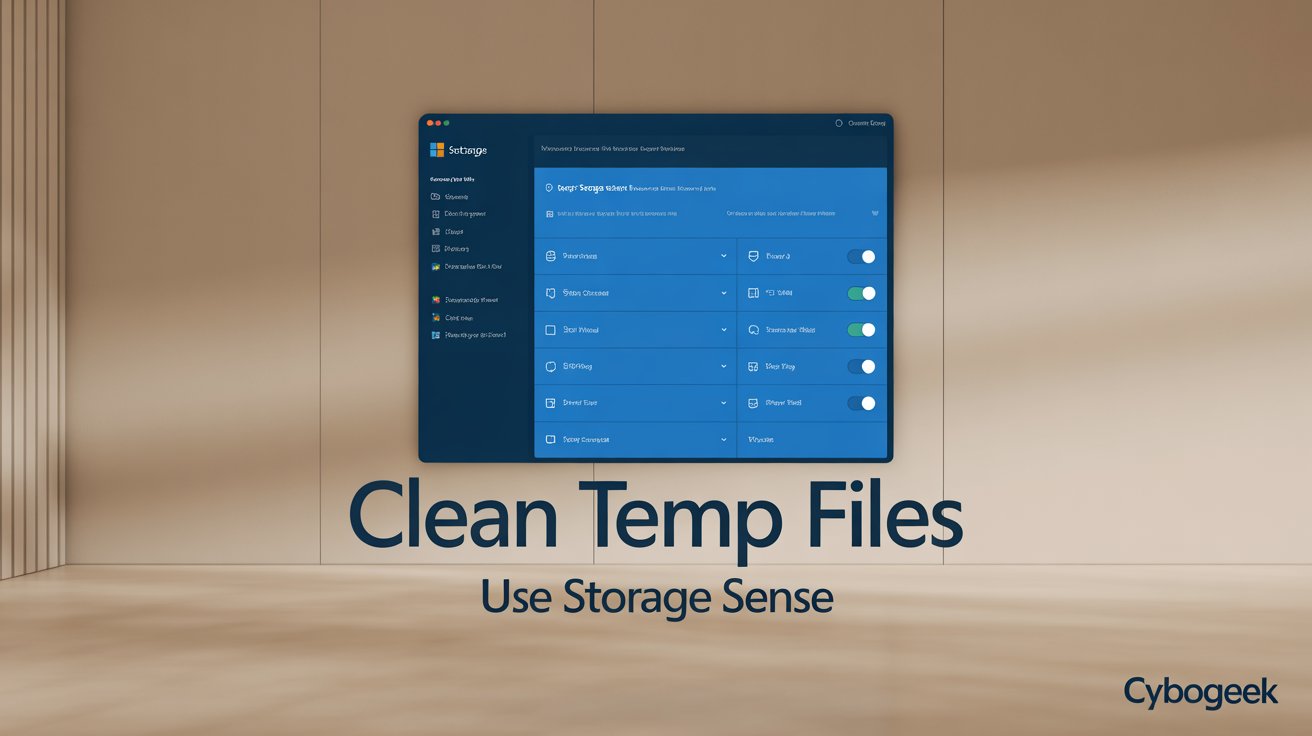
To enable Storage Sense:
- Open Settings.
- Go to System > Storage.
- Turn Storage Sense on.
- Click Configure Storage Sense or run it now.
- Choose monthly or weekly cleanup.
- Click Clean now.
You can also use this to delete:
- temporary files,
- old downloads,
- recycle bin contents,
- and unused system files.
Making sure your drive is not near capacity is one of the most straightforward ways to improve speed.
Fix 5: Change power plan to Best Performance
By default, Windows laptops often use a balanced power plan to save battery. This is good for battery life, but it can limit performance. For faster performance, switch to Best Performance mode, especially when the laptop is plugged in. Microsoft’s performance guidance includes power settings as a key optimization step.
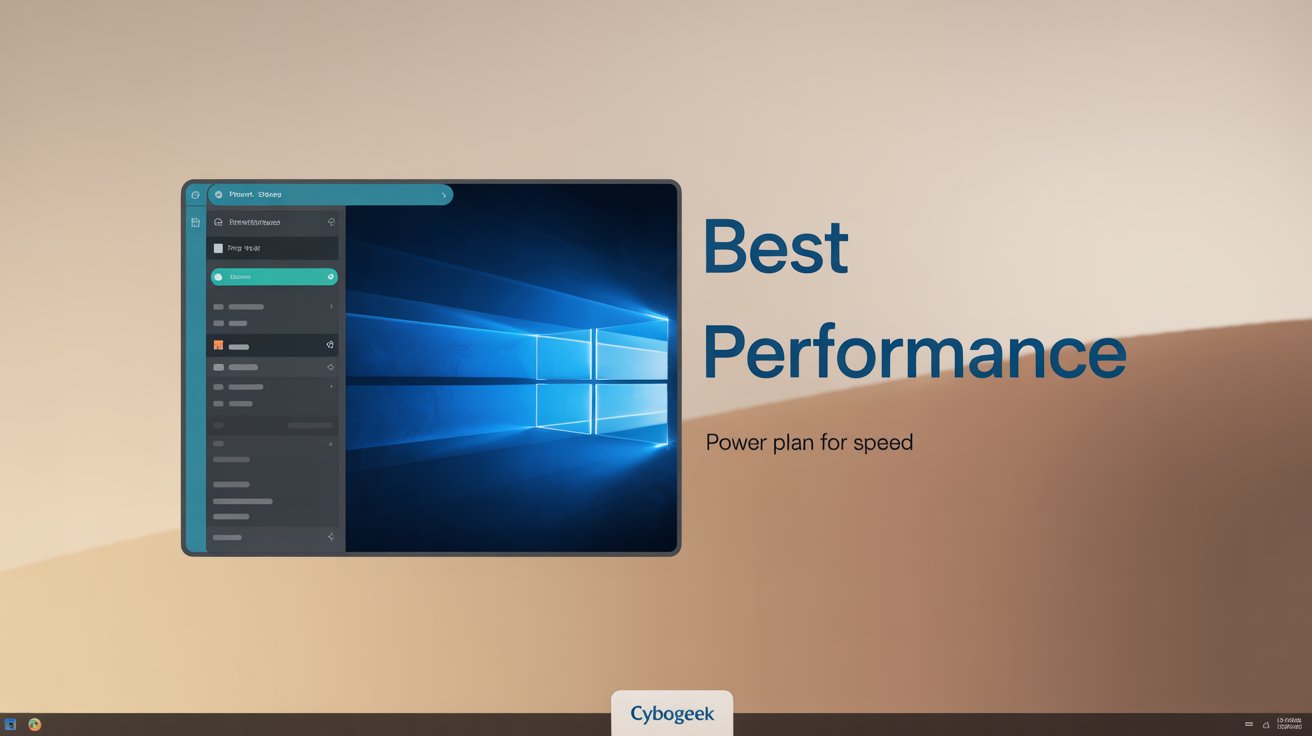
To change power mode:
- Open Settings.
- Go to System > Power & battery.
- Click Power mode.
- Select Best performance.
This tells Windows to prioritize speed over energy saving. You will notice faster app launches and smoother performance, especially on older hardware.
Fix 6: Turn off visual effects and animations
Windows uses visual effects like animations, transparency, and shadow effects. These look nice, but they can slow down older or lower-end laptops. Microsoft’s official performance tips include adjusting for best performance by reducing visual effects.
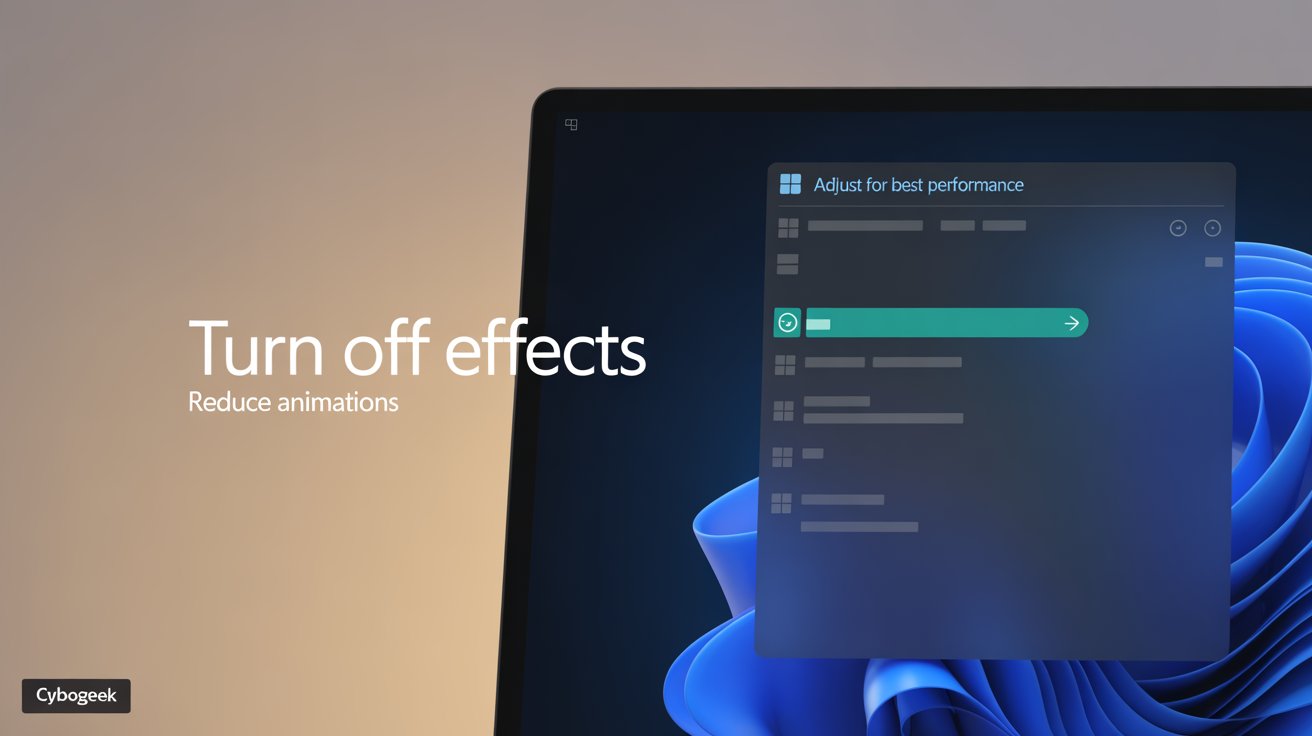
To reduce visual effects:
- Press Windows + R.
- Type
sysdm.cpl. - Press Enter.
- Go to the Advanced tab.
- Under Performance, click Settings.
- Choose Adjust for best performance.
- Click OK.
You can also manually select a few effects you want to keep, such as:
- smooth edges of screen fonts,
- show thumbnails instead of icons,
- and show desktop composition.
This can make older laptops feel much more responsive.
Fix 7: Turn off background apps
Some apps continue running in the background even when you are not using them. These apps can use CPU, memory, and network resources. Microsoft’s performance guidance includes managing background apps as part of improving PC speed.
To turn off background apps:
- Open Settings.
- Go to Apps > Installed apps.
- Click the three-dot menu next to an app.
- Select Advanced options.
- Under Background apps permissions, change to Never for apps you do not need running in the background.
This is especially useful for apps like:
- shopping apps,
- weather apps,
- news apps,
- and other utilities you do not actively use.
Fix 8: Check for Windows updates
Windows updates often include performance improvements, bug fixes, and driver updates. Microsoft’s official performance guidance includes keeping Windows updated as a basic step.
To check for updates:
- Open Settings.
- Go to Windows Update.
- Click Check for updates.
- Install any pending updates.
- Restart the PC if needed.
Updates can fix issues that cause slowdowns on older versions of Windows.
Fix 9: Use Performance Monitor to check what is slowing you down
Windows includes built-in tools to help you see what is using your system resources. Performance Monitor and Task Manager can show which apps or services are using high CPU, memory, or disk. Microsoft’s performance tips include checking for resource-heavy processes.
To check:
- Press Ctrl + Shift + Esc to open Task Manager.
- Click More details.
- Go to the Processes tab.
- Look for apps using high CPU, memory, or disk.
If you see a process using a lot of resources, note its name and search online to understand what it does. Some processes are essential, but others can be stopped or adjusted.
Fix 10: Optimize virtual memory only if needed
Windows uses virtual memory (page file) when physical RAM is full. In some cases, increasing virtual memory can help performance, especially on systems with limited RAM. Microsoft’s performance guidance includes checking virtual memory as an advanced step.
To check virtual memory:
- Press Windows + R.
- Type
sysdm.cpl. - Press Enter.
- Go to the Advanced tab.
- Under Performance, click Settings.
- Go to the Advanced tab again.
- Under Virtual memory, click Change.
Unless you know exactly what you are doing, leave virtual memory on Automatically manage paging file size. Improper changes can cause more problems than they solve.
Best order to try the fixes
To get the most benefit in the shortest time, use this order:
- Restart your laptop.
- Disable unnecessary startup apps.
- Uninstall unused apps.
- Turn on Storage Sense and clean temporary files.
- Change power plan to Best Performance.
- Turn off visual effects and animations.
- Turn off background apps.
- Check for Windows updates.
- Use Task Manager to check resource usage.
- Adjust virtual memory only if needed.
This order starts with low-risk, high-impact fixes before moving to advanced settings.
Common mistakes to avoid
These mistakes can make speed-up attempts less effective:
- installing multiple “PC booster” apps,
- changing settings you do not understand,
- disabling system services you do not recognize,
- ignoring power settings,
- and assuming hardware is the only cause of slowness.
Built-in Windows tools are often enough to make a noticeable difference.
Final thoughts
A slow Windows laptop does not always mean you need a new computer or new software. In many cases, built-in settings and simple cleanup steps are enough to restore good performance. Microsoft’s official performance guidance and current 2026 optimization guides keep returning to the same core fixes: disable startup apps, uninstall unused software, clean disk space, reduce visual effects, and adjust power settings.
Read this before Leaving: How to Fix Windows 11 Update Problems in 2026
If you follow these steps carefully, you can often make your laptop feel noticeably faster without spending money or installing anything new.