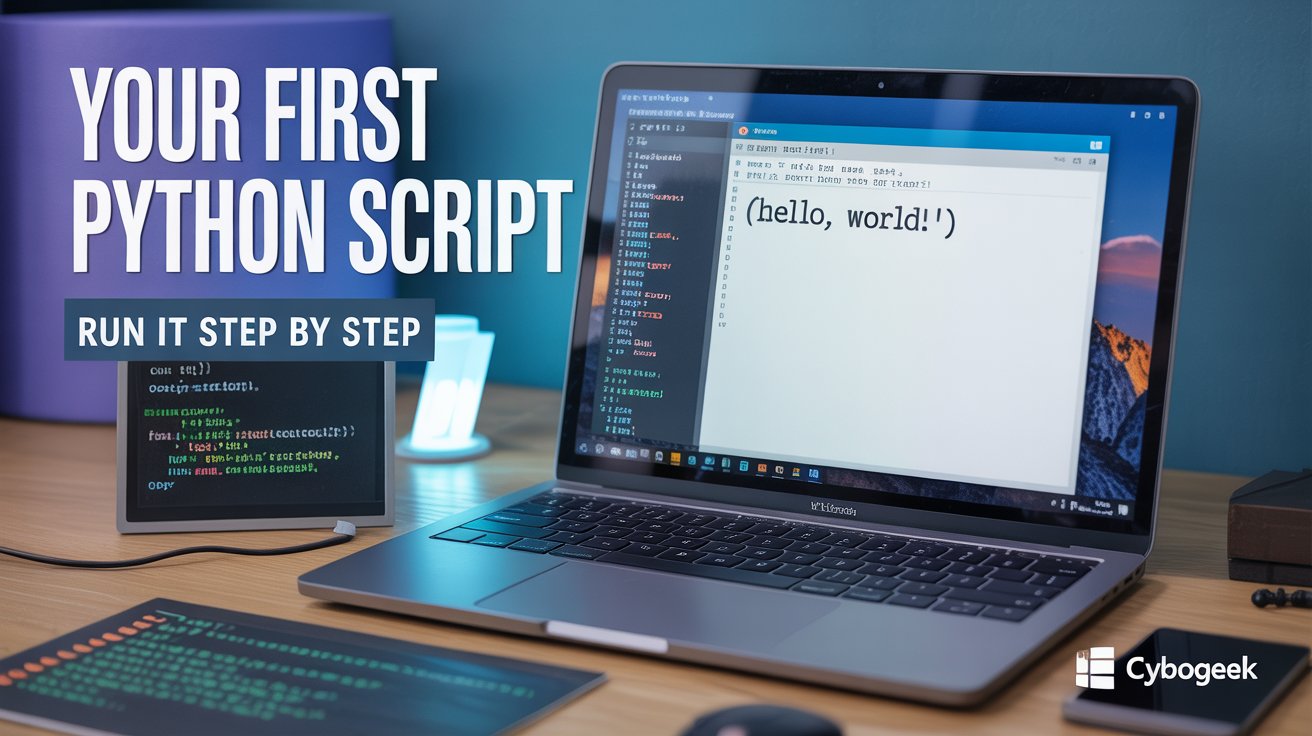
Running your first Python script is one of those moments you will remember. It is the point where Python stops being something you read about and starts being something you do. Suddenly, the code in your text editor becomes real output on your screen — and that feeling is genuinely exciting.
This guide walks you through every step of writing, saving, and running a Python script on Windows, including multiple methods, common mistakes beginners make, and where to go from here. Whether you are a student, a curious hobbyist, or someone switching careers into tech, this tutorial is written with you in mind.
Before You Begin: What You Need
You will need Python installed on your Windows computer. If you have not done this yet, head over to python.org/downloads and grab the latest stable version. During installation, make sure to check the box that says “Add Python to PATH” — this is the most common setup mistake beginners make, and skipping it causes problems we will cover in the troubleshooting section below.
If you haven’t installed Python, follow our Complete Python Installation Guide
You also need a text editor. Here are your three best options:
- Notepad — Already on your PC, no installation required. Fine for a quick start.
- VS Code (Visual Studio Code) — Free, powerful, and what most professional developers use. Recommended for anyone serious about learning Python.
- IDLE — Comes bundled with Python automatically. Simple and beginner-friendly.
There is no wrong choice here. Pick whichever one feels most comfortable and get started.
Step 1: Write Your First Python Program
Open your text editor and type the following two lines exactly as shown:
print("Hello, World!")
print("Your first Python script is running!")
That is your entire first program. Two lines. Simple — but do not underestimate it.

What is print() and why does it matter?
The print() function is one of the most used tools in Python. It tells Python to display whatever is inside the parentheses on the screen. The text inside the quotation marks is called a string — a sequence of characters Python treats as plain text.
When you run this script, Python reads line 1, prints the first message, then reads line 2, prints the second message, and stops. Python executes code from top to bottom, one line at a time. This is called sequential execution, and it is one of the fundamental concepts behind all programming.
If you want, try adding a third line:
print("I am learning Python!")
Python will print all three messages in order. This is your first experience with how programs actually work.
Step 2: Save the File Correctly
This step trips up more beginners than any other. Pay close attention.
Go to File > Save As in your text editor and follow these rules:
- Name the file
hello.py— the.pyextension tells Windows (and Python) that this is a Python script. - Save it somewhere you can easily find. A folder called
PythonProjectsinside your Documents folder is a great habit to start early. You could also save to the Desktop for now. - In Notepad specifically, change “Save as type” from
Text Documents (*.txt)toAll Files (*.*)before saving. Otherwise Notepad silently saves it ashello.py.txt, which will not run as a Python script.
How to check your file was saved correctly
Open File Explorer and navigate to where you saved the file. If you see hello.py with a Python logo icon, you are good. If you see hello.py.txt, you need to rename it.
Quick fix for hidden extensions: Windows hides file extensions by default. To turn this off, open File Explorer, click the View tab at the top, and check the box labeled “File name extensions”. Now you can see the real name of every file on your computer — a useful habit for any developer.
Step 3: Open Command Prompt or PowerShell
The command line is where you actually run Python scripts. It looks intimidating at first, but you will be comfortable with it after a few minutes.
How to open Command Prompt:
- Press the Windows key, type
cmd, and press Enter. - Or press Windows key + R, type
cmd, and press Enter.
How to open PowerShell:
- Press the Windows key, type
PowerShell, and press Enter.
Both work fine for running Python scripts. Command Prompt is slightly simpler; PowerShell is more powerful. Either is fine for what we are doing here.
You will see a black window with a blinking cursor. This is the terminal — a text-based interface for talking directly to your computer. It is the same kind of tool that developers all over the world use every day.
Step 4: Navigate to Your Script’s Folder
The terminal starts in a default location, usually your user folder (something like C:\Users\YourName). You need to navigate to the folder where you saved hello.py.
The command you use is cd, which stands for change directory. Here are examples:
If you saved your file on the Desktop:
cd Desktop
If you saved it in a PythonProjects folder inside Documents:
cd Documents\PythonProjects
If you ever get lost, you can always type cd %USERPROFILE% to return to your home folder and start again.
Confirm you are in the right place
Once you navigate to the folder, type this command and press Enter:
dir
This lists every file in the current folder. If you see hello.py in the list, you are in exactly the right place. If you do not see it, you are in the wrong folder — use cd again to find it.
Step 5: Run the Script
This is the moment everything comes together. Type the following command and press Enter:
python hello.py
Your terminal should display:
Hello, World!
Your first Python script is running!
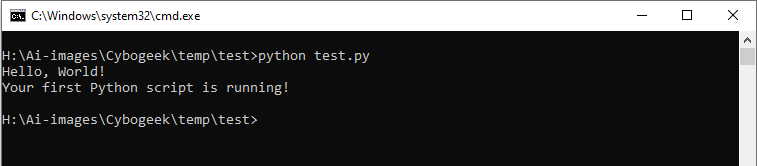
Congratulations. You just ran your first Python program. Your setup is working correctly, and you have taken a real step into software development.
Alternative Ways to Run Python Scripts
The command line is not the only option. Here are three other methods, each with its own advantages.
Method 1: Using IDLE (Best for Beginners)
IDLE is Python’s built-in editor and is perfect if you want a simple, distraction-free environment.
- Press the Windows key and search for IDLE.
- Open it. You will see the Python Shell — a place where you can type Python code directly.
- Go to File > Open and select your
hello.pyfile. - Press F5 (or go to Run > Run Module).
The output appears in the Shell window at the bottom. IDLE also highlights your code in different colors (called syntax highlighting), making it easier to read and spot mistakes.
Method 2: Using VS Code (Best for Serious Learning)
VS Code is the industry-standard editor for Python development. It is more complex than IDLE but far more powerful, and learning it now will pay off later.
- Download VS Code from code.visualstudio.com.
- Install the Python extension (you will be prompted on first launch, or search for “Python” in the Extensions panel).
- Open your project folder: File > Open Folder and select your
PythonProjectsfolder. - Click on
hello.pyin the sidebar to open it. - Press Ctrl+F5 or click the Run Python File button (the play icon in the top-right corner).
VS Code runs the script and shows the output in a built-in terminal panel at the bottom. You also get autocomplete suggestions, error highlighting, and a debugger — tools that become invaluable as your programs grow.
Method 3: Double-Clicking the File
You can right-click hello.py in File Explorer and choose Open with > Python. A terminal window will open, run the script, and then close immediately — often too fast to read.
To keep the window open long enough to see the output, add this line at the very end of your script:
input("Press Enter to close...")
This pauses the program and waits for you to press Enter before the window closes. It is a quick fix, but for most learning purposes, using the terminal or VS Code is a better habit to develop.
Troubleshooting Common Problems
“Python is not recognized as an internal or external command.”
This means Python is not in your system’s PATH — Windows does not know where Python is installed.
Quick fix: Try using py instead of python:
py hello.py
Permanent fix: Reinstall Python from python.org and make sure to check “Add Python to PATH” during installation. After reinstalling, restart Command Prompt and try again.
“No module named…”
This error usually means one of two things. Either you are in the wrong folder (so Python cannot find your file), or you are trying to use an external library that has not been installed yet.
For our simplehello.py, this should not happen. If it does, type dir to list the files in your current folder and confirm hello.py if it’s there. If not, use cd to navigate to the correct location.
The terminal window opens and closes instantly
This happens when you double-click a .py file. The script runs and finishes in a fraction of a second, and Windows closes the terminal. Add input("Press Enter to close...") to the end of your script to pause it, or use the command line method instead — which gives you full control.
The output shows an error in red text
Red text means Python found a problem in your code. Read the error message carefully — Python error messages are actually quite informative once you learn to read them. Common causes include:
- A missing closing quote:
print("Hello, World!— notice no closing" - Wrong capitalization:
Print("Hello")instead ofprint("Hello")— Python is case-sensitive - Missing parentheses:
print "Hello"— valid in older Python 2, but not in Python 3
Understanding What Just Happened (The Bigger Picture)
When you typed python hello.py and pressed Enter, several things happened behind the scenes:
- Windows found the Python program installed on your computer.
- Python opened and read your
hello.pyfile. - Python translated your human-readable code into instructions the computer can execute.
- The computer executed those instructions and sent the output to your screen.
This process is called interpretation — Python reads and runs your code line by line, without first compiling it into a separate file the way some other programming languages do (like C++ or Java). This is one reason Python is so beginner-friendly: the feedback loop between writing code and seeing results is almost instant.
What to Do Next
Now that your setup is confirmed and you understand how running a script works, here are five things to try immediately:
1. Change the message. Edit hello.py, change the text inside the quotes, save, and run again. Get comfortable with the edit-save-run loop.
2. Add more print lines. Try printing your name, your age, your favorite movie — anything. See how each line appears in order.
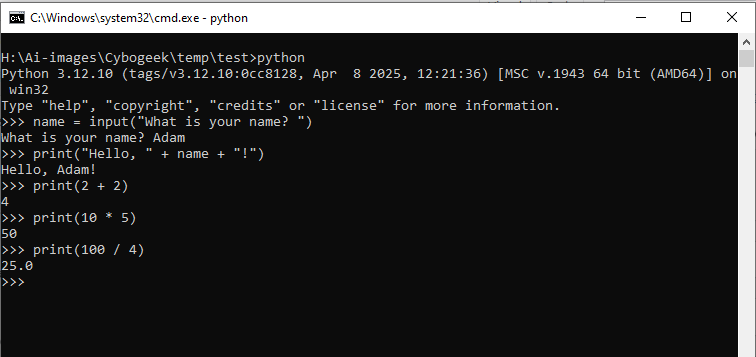
3. Use the input() function. Replace your second print line with:
name = input("What is your name? ")
print("Hello, " + name + "!")
This makes your program interactive. The user types a name, and Python greets them by name. You have just written your first program with user input.
4. Experiment with math. Python is a calculator too. Try:
print(2 + 2)
print(10 * 5)
print(100 / 4)
No quotes needed for numbers — Python handles them differently from text.
5. Make your first mistake on purpose. Delete a closing quote or misspell print. Run the script. Read the error message. Getting comfortable with Python’s error messages is one of the fastest ways to become a better programmer.
Final Thoughts
Writing and running your first Python script is a simple act with a significant meaning. It proves your environment is set up correctly, teaches you how the terminal works, and gives you a concrete foundation to build on.
From here, every Python concept you learn — variables, loops, functions, libraries, web scraping, data analysis, automation — will be built on top of this exact workflow: write code, save the file, run the script, see the result.
The gap between a beginner and a confident Python developer is just practice. And practice starts with python hello.py.