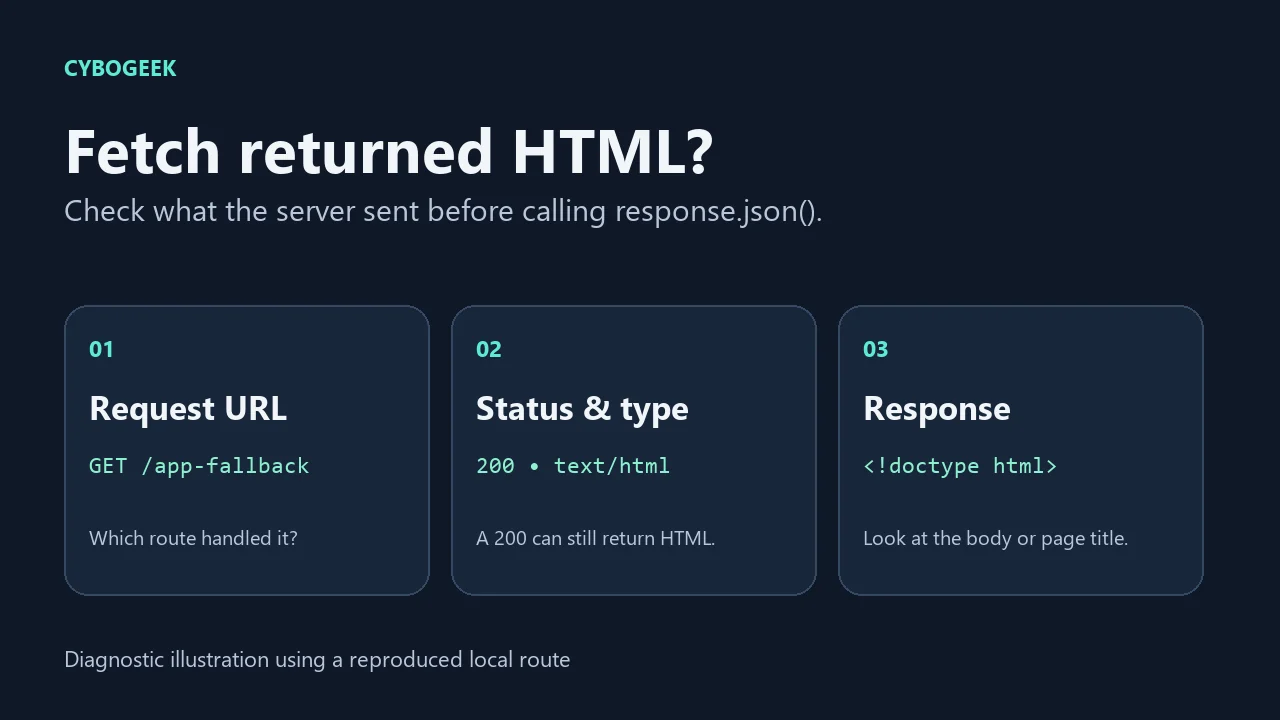
If a browser reports an unexpected < while your JavaScript reads JSON, open DevTools → Network, select the request, and check Status, Content-Type, and Response. When the response starts with <!doctype html>, the JSON parser is reporting a format mismatch. The next job is to find out which route, deployment layer, or sign-in flow returned the HTML.
A 404 can produce this error. So can a 200 response. A successful HTTP status says that the server handled the request. It tells you nothing about whether the response contains the data shape your application expects.
Start with the failing request from your app. Opening the URL directly in a browser can be helpful, but it issues a new GET and may use a different session or omit headers. A successful page load in a separate tab can therefore hide the difference that caused the error. Keep the original Network entry open as you compare the URL, method and final response.
Check the response before changing your code
Open the Network panel and trigger the problem once. Select the request that produced the error. If the page navigates away during the operation, enable Preserve log first. Then record these details from the same request:
- Request URL and method. Compare the request URL with the documented endpoint. Check the origin, route prefix and method. A relative URL can resolve differently in a preview deployment, a nested page or an app served under a subdirectory.
- Status and redirects. Look for the status code on the response that Fetch actually received. If a redirect occurred, check where it ended. A request for data can end on an ordinary HTML page that returns 200.
- Content-Type. A value such as
text/htmlis a useful clue. A JSON API typically usesapplication/jsonor a media type ending in+json. - Response body. Read enough to identify the page. Look for your app shell, a login form, a branded error page or a default server error. Keep sensitive response details out of shared logs and screenshots.
Inspect the body even if the headers look correct. A JSON media type cannot make malformed text parseable. Likewise, some legacy endpoints return valid JSON with an incorrect header. Decide whether to fix that endpoint or explicitly support it as a documented exception.
If the Network list is busy, choose the Fetch/XHR filter and repeat the action once. Use the request’s Headers tab for status and media type, then switch to Response for the actual payload. In an HTML response, the page title can help you tell your own app shell from a sign-in page or a hosting error. Chrome DevTools Network reference
Match the evidence to the next check
| What Network shows | What to check next |
|---|---|
| 404 and HTML | Verify the actual API base URL, method and route. Compare local and deployed configuration. |
| 200 and your app’s HTML shell | Check whether the frontend fallback handled an API path, or whether the request hit the frontend origin instead of the API origin. |
| 200 and an HTML sign-in page | Look for a redirect to sign-in or an expired session. Handle the signed-out state according to your API’s contract. |
| 5xx and branded HTML | Check the relevant service or hosting logs. The HTML may be an error page generated before your application produced its normal response. |
| 200, JSON media type, invalid payload | Inspect the first invalid part of the response and check for truncated output, trailing text or serialization errors. |
| 204 or another intentionally empty response | Follow the endpoint’s no-content contract and skip JSON parsing for that response. |
Why fetch can resolve on a 404
fetch() normally resolves with a Response when the server returns an HTTP error status. Your code still has to check response.ok or read the status. Network failures and certain browser restrictions can reject the promise before you get a response. A JSON parsing error happens later, when response.json() tries to read the response body. These are different failure stages and point to different checks. MDN Using the Fetch API
Suppose your code requests /api/products and the server returns a 404 page. If the next line immediately calls response.json(), the parser sees the less-than sign at the start of an HTML element and raises a syntax error. Checking the status first lets you report the missing route. If that same request falls into a frontend catch-all route and gets the app shell, the status might be 200. In that case you need the content type or response preview to see the mismatch.
Start with this small diagnostic in development. Run it from the page that normally requests the API so the origin and session match. Change the path or method to reflect your application.
const response = await fetch("/api/products");
console.table({
  status: response.status,
  contentType: response.headers.get("content-type"),
  redirected: response.redirected,
  finalPath: new URL(response.url).pathname
});
On a signed-out endpoint that redirects to a sign-in page, the last response may show 200, text/html, true and a path like /sign-in. The browser followed the original redirect. Use the Network panel to inspect the redirect chain and response body without adding those details to application logs. The example assumes Fetch supplied a normal HTTP response URL. For a synthetic or opaque response, inspect the response type and available fields first.
A JSON-only helper for endpoints you own
This example assumes the endpoint contract says successful responses contain JSON, except for 204. If your API returns structured error responses, parse them in a separate error handler that follows your API contract. The helper keeps response bodies out of its error messages. Adapt the empty-response check if your own API returns a bodyless 205 response or if you call it with HEAD.
async function fetchJson(url, options) {
  const response = await fetch(url, options);
  if (!response.ok) {
    throw new Error(`Request failed with HTTP ${response.status}`);
  }
  if (response.status === 204) return null;

  const contentType = response.headers.get("content-type") ?? "";
  const mediaType = contentType.split(";")[0].trim().toLowerCase();
  if (mediaType !== "application/json" && !mediaType.endsWith("+json")) {
    throw new Error(`Expected JSON but received ${mediaType || "no content type"}`);
  }

  return response.json();
}
Call it from a location that can display a useful error state. The UI can say that it couldn’t load the data and let the user retry where that makes sense. In development, the Network entry tells you what the API returned. Avoid dumping raw responses into production logs. An HTML page can contain parts of a user session or details about your infrastructure.
The helper does not validate the parsed object. If your UI expects an array of products and gets a valid JSON object that describes some other endpoint, parsing succeeds. Validate the shape at the boundary where that matters. This is particularly useful when a backend and frontend deploy on separate schedules.
Seven responses from a local test server
I ran Fetch against a loopback HTTP server in Node.js v22.23.5. The server returned actual HTTP responses, including a redirect. Each case was requested twice so the direct parser and the helper each received an unread body. The table reports the error class where JavaScript runtimes may use different wording.
| Local route | Response | Direct json() |
Guarded helper |
|---|---|---|---|
/api/products |
200 JSON | Product array | Product array |
/api/missing |
404 HTML | SyntaxError |
HTTP 404 error |
/app-fallback |
200 HTML | SyntaxError |
Expected JSON, received HTML |
/api/bad-json |
200 malformed JSON | SyntaxError |
SyntaxError |
/api/empty |
204 empty | SyntaxError |
null |
/api/vendor |
200 vendor +json |
Parsed object | Parsed object |
/api/session |
302 to /sign-in, then 200 HTML |
SyntaxError |
Expected JSON, received HTML |
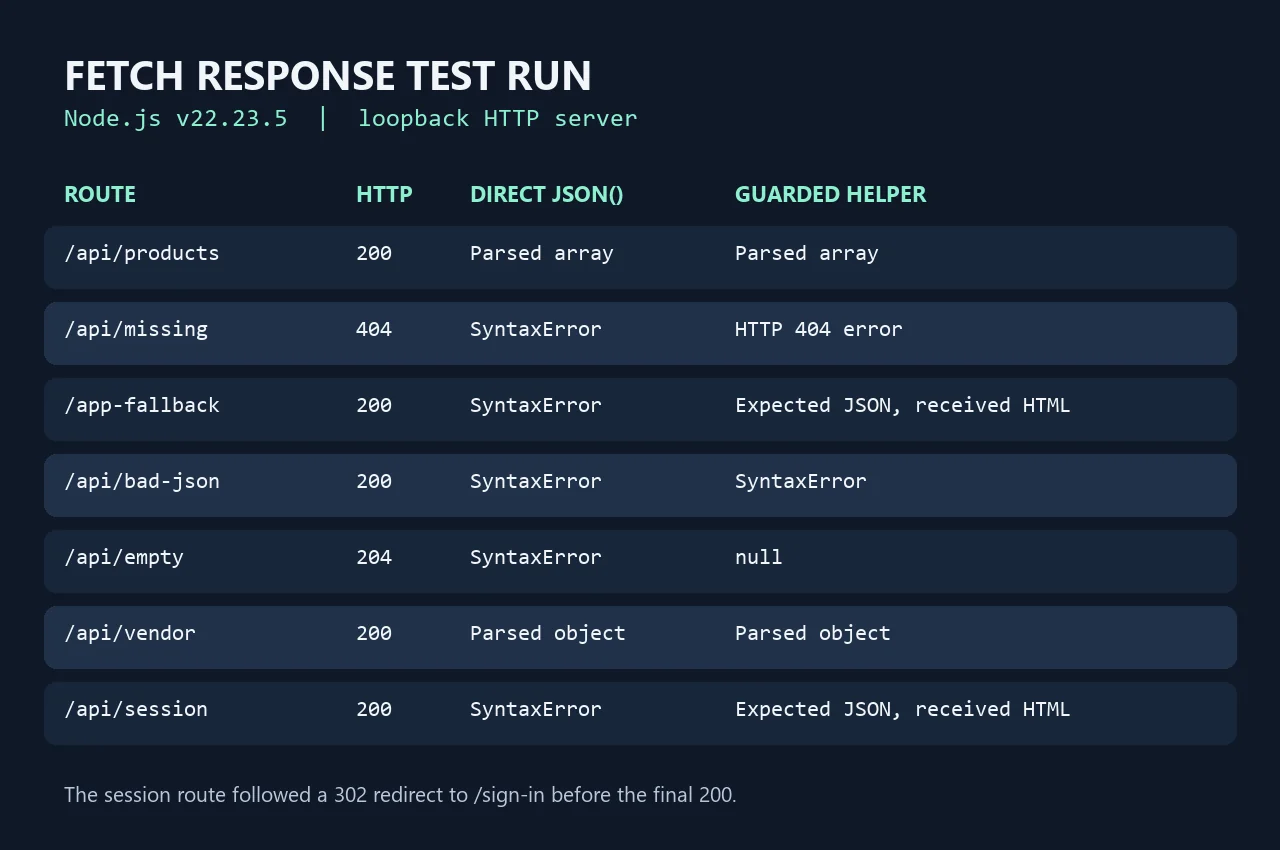
These results explain why a status check and a response-format check answer different questions. The test verifies Fetch behavior against a local HTTP server. Browser-specific behavior such as CORS still needs a browser check against your own deployment.
If the page works locally and fails after deployment
Start with the production request URL shown in the browser. Builds often replace environment variables at build time. Changing a variable in the server environment after the frontend bundle was built might leave the old base URL in the browser. Check what the deployed client requests and compare it with the configured deploy environment.
Next, compare routes on the frontend host and backend host. A single-page app commonly sends its HTML entry point for unknown paths so deep links still load. If the same behavior handles your API route, the frontend receives the HTML entry point in place of data. Confirm that your deployment matches API routes before applying the frontend fallback. For example, Netlify evaluates redirect and rewrite rules in order, so a catch-all placed too early can capture paths intended for a later rule. Only copy routing rules after checking your host’s syntax and where your actual API runs. Netlify rule processing order
Finally, send the same ordinary request from a clean browser session using your test account. If an authenticated session receives JSON and a signed-out session gets a sign-in page, account for that in your UI. Check the API’s documented behavior before changing URL handling or request credentials.
Retest a normal application page along with the API route after changing the deployment. A broad rewrite can solve one path and break a deep link elsewhere. If you expect unknown API paths to return a JSON error, check a deliberately missing endpoint on your own deployment as well. The correct status and media type should survive the production gateway, not just a request sent directly to the API process.
Common fixes that miss the cause
Adding an Accept: application/json header can express what your client wants. It doesn’t turn a missing route or sign-in redirect into a JSON endpoint. Use it when the server negotiates response formats, and still inspect the response you actually received.
Changing the request’s Content-Type is a different operation. That header describes a body you send, such as a JSON payload in a POST. It doesn’t describe the body the server sends back. Check the response headers separately.
If json() has already consumed the body, a later call to text() on that same response can fail because the stream has already been read. Use the Network preview. For a temporary local test, clone the response before reading it if you need the original and a diagnostic copy. MDN Response.json
What to verify after the fix
Trigger the same request that originally failed. Confirm that its URL and method match the API contract, the response has the expected media type, and the parsed data appears correctly in your UI. Then test one failure path. Try your own application’s missing route or signed-out state and check that the UI shows a useful message. If both cases are clear, you’ve fixed the request and made the next failure easier to diagnose.
When you turn this into a regression test, assert the status, content type and parsed shape separately. For example, a products endpoint can return valid JSON while emitting an explanatory object instead of an array. A test that only asserts that parsing succeeds would accept that response. If you support an empty success response, add a separate test for that contract too. Rerun the test against a preview deployment before changing the production routing rules.