A Wi‑Fi connection that keeps disconnecting is one of the most annoying Windows 11 problems because it breaks everything at once. Browsing becomes unreliable, downloads fail, video calls freeze, and even basic work starts feeling impossible.
The tricky part is that random Wi‑Fi drops can have different causes. Sometimes the problem is the router. Sometimes it is the network adapter driver. In other cases, Windows power-saving settings, network profile corruption, or broken TCP/IP settings are the real reason your internet keeps cutting out. Microsoft’s official Windows guidance reflects this broader troubleshooting path rather than pointing to one single fix.
The good news is that most Wi‑Fi disconnection problems can be solved with built-in Windows tools and a few careful setting changes. This guide walks through the best fixes in a logical order, starting with simple checks and moving to stronger repairs only when needed.
Read This- Windows 11 Apps Not Opening After an Update: 12 Fixes That Actually Work
What this problem usually looks like
Random Wi‑Fi disconnection does not always mean the same thing. You might see one of these symptoms:
- Wi‑Fi disconnects every few minutes.
- The network stays connected, but the internet stops working.
- Wi‑Fi drops after sleep mode.
- The connection fails after a recent Windows update.
- The 5GHz network disappears from time to time.
- The laptop reconnects only after a manual restart.
- Other devices work fine, but your Windows 11 PC keeps losing connection.
These differences matter because they often point to different causes. For example, if only one PC is affected while phones and other laptops stay online, the issue is more likely to be on the Windows side than the router side.
Why Wi‑Fi keeps disconnecting on Windows 11
There are several common reasons behind this problem:
- outdated or unstable network adapter drivers,
- power-saving settings turning off the wireless adapter,
- corrupted saved Wi‑Fi profiles,
- bad DNS or TCP/IP settings,
- recent Windows updates changing driver behavior,
- router instability,
- or a broken Windows networking stack.
This is why random guessing usually wastes time. A better approach is to start with low-risk fixes, test the connection, and only then move into adapter resets and deeper repairs.
Start with the simple checks
Before changing Windows settings, do these basic checks first:
- Restart the PC.
- Restart the router.
- Move closer to the router for a few minutes and test again.
- Check whether other devices on the same Wi‑Fi are also disconnecting.
- Test both 2.4 GHz and 5 GHz if your router supports them.
Microsoft’s support guide for Windows networking problems begins with practical connection checks like these because they help separate a Windows problem from a router or signal problem.
If every device is dropping, the router or ISP is likely the real issue. If only the Windows 11 PC is affected, continue with the steps below.
Fix 1: Forget the Wi‑Fi network and reconnect
A saved network profile can become corrupted, especially after major updates or network changes. Reconnecting from scratch often clears the problem. This step appears regularly in Windows 11 Wi‑Fi repair guides and is also commonly recommended when users see random drops after updates.
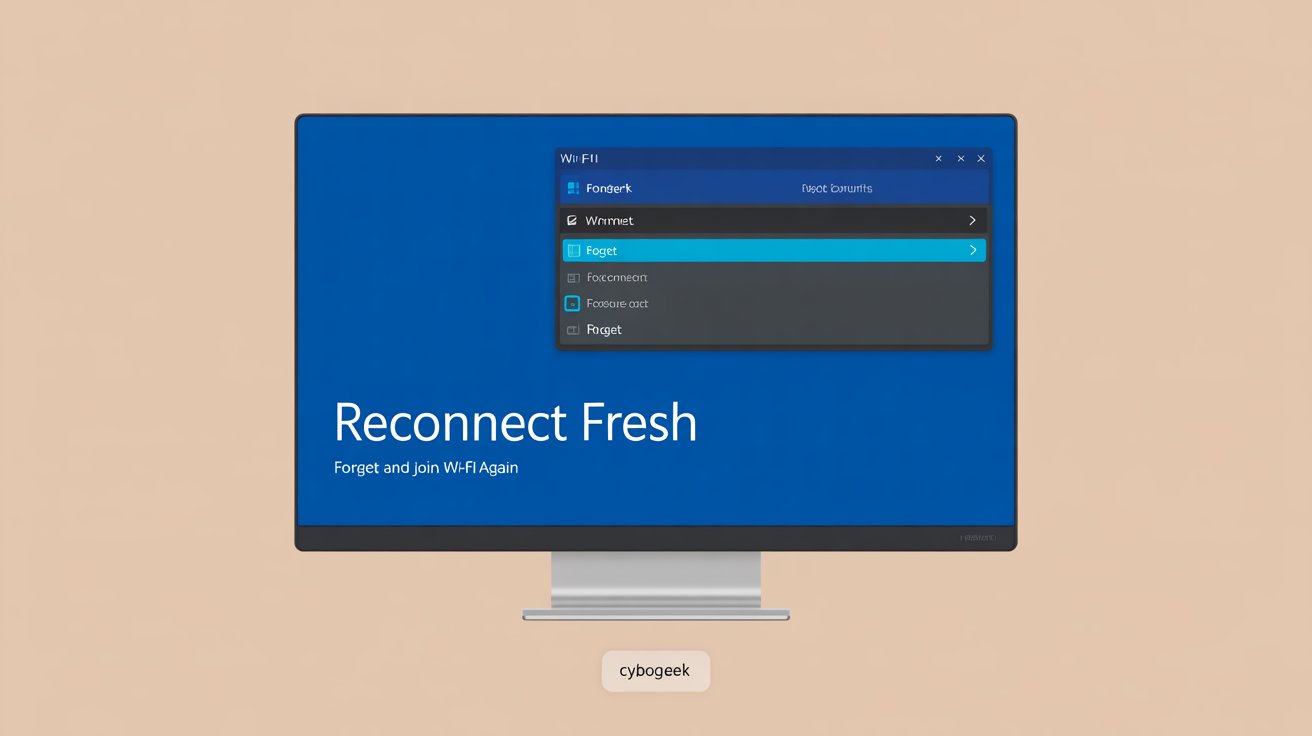
To do it:
- Open Settings.
- Go to Network & internet > Wi‑Fi > Manage known networks.
- Find your current Wi‑Fi network.
- Click Forget.
- Reconnect to it manually and enter the password again.
After reconnecting, test the connection for a while before moving to the next fix.
Fix 2: Run the Network and Internet troubleshooter
Windows includes built-in troubleshooters for internet and network issues. Microsoft officially recommends using these tools when diagnosing connection problems.
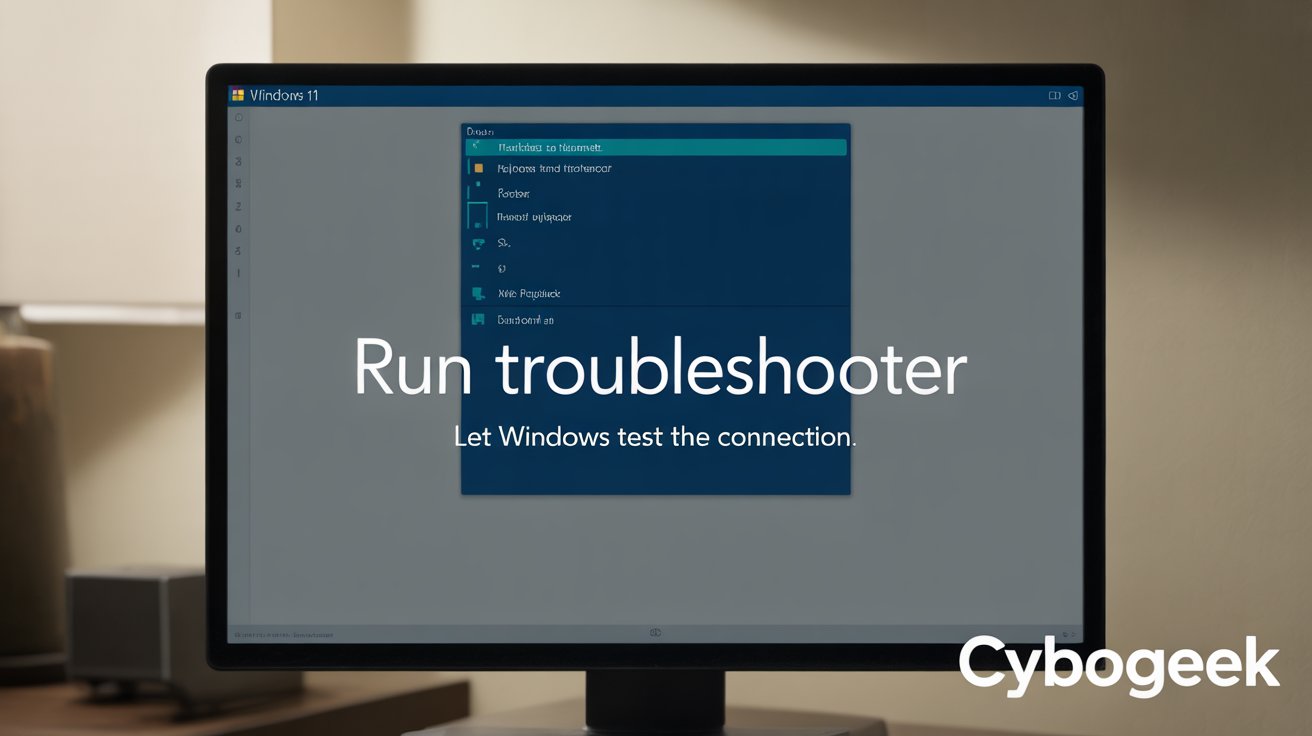
To run it:
- Open Settings.
- Go to System > Troubleshoot > Other troubleshooters.
- Find Network and Internet.
- Click Run.
This will not solve every case, but it is a safe early step that can detect obvious issues in adapter configuration or connectivity.
Fix 3: Turn off Wi‑Fi power saving
This is one of the most common causes of random Wi‑Fi drops on laptops. Windows may try to save battery by turning off the wireless adapter, which can lead to repeated disconnections. Multiple 2026 troubleshooting guides highlight this as a major cause of unstable wireless connections.
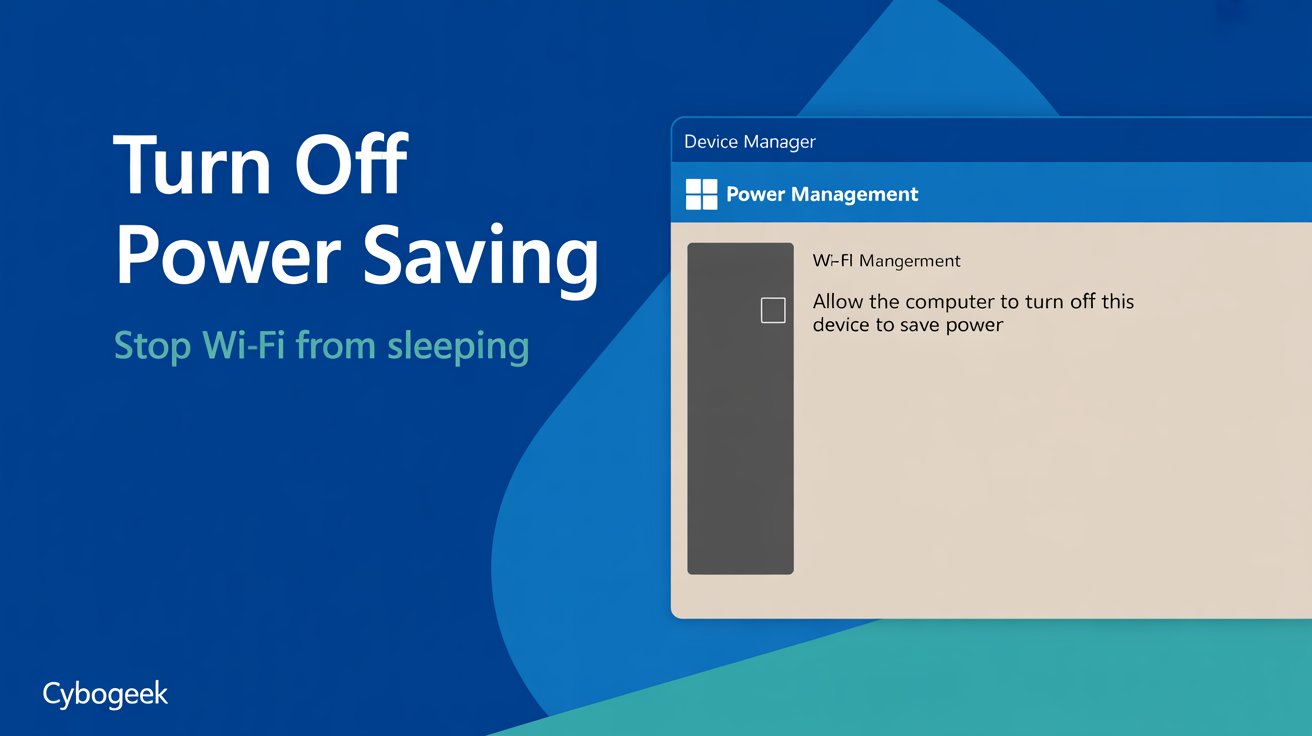
To change it:
- Right-click Start and open Device Manager.
- Expand Network adapters.
- Right-click your Wi‑Fi adapter and choose Properties.
- Open the Power Management tab.
- Uncheck Allow the computer to turn off this device to save power.
- Click OK.
This fix is especially important if:
- the problem happens after sleep mode,
- the laptop disconnects when idle,
- or the issue appears mostly on battery power.
Fix 4: Update or roll back the Wi‑Fi driver
Drivers are one of the biggest causes of wireless instability after Windows updates. Sometimes Windows installs a newer driver that is buggy for your hardware. Other times, your current driver is simply outdated. Microsoft’s support flow includes checking and updating network adapter drivers, and video walkthroughs from 2026 repeatedly point to driver issues as a root cause.
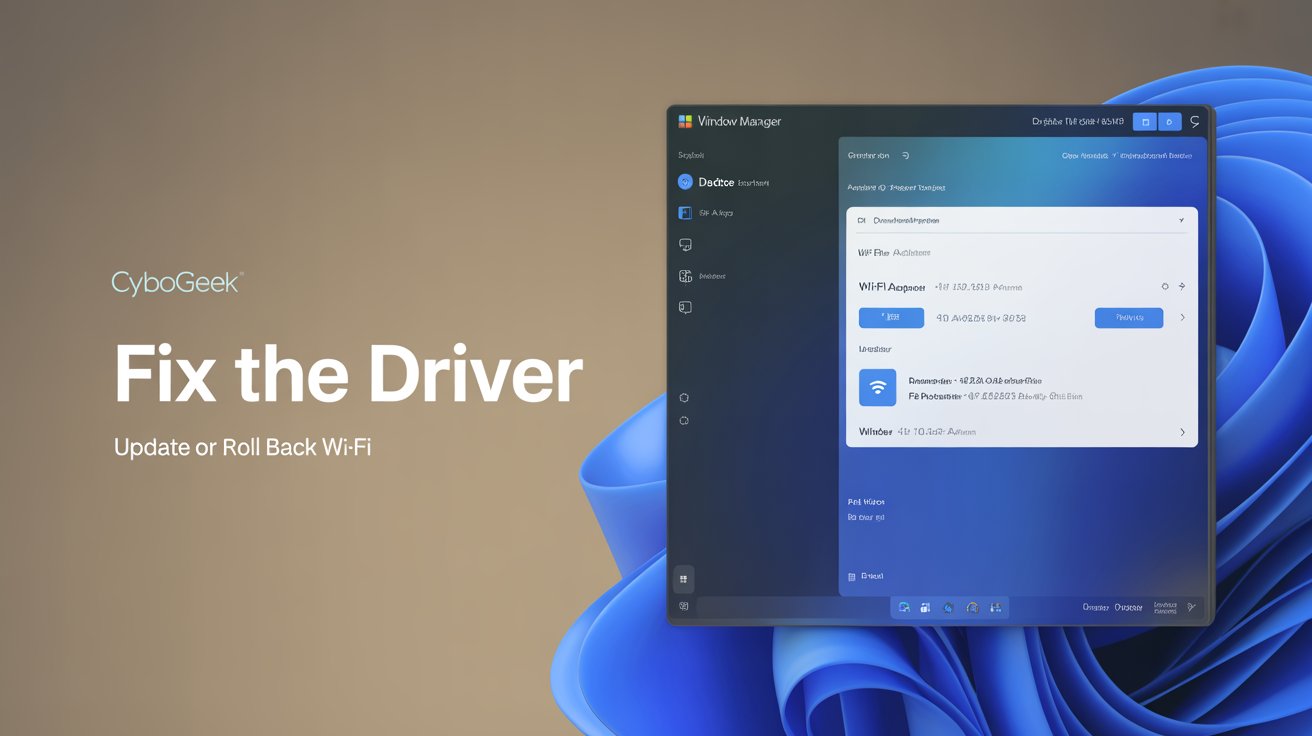
To update:
- Open Device Manager.
- Expand Network adapters.
- Right-click your Wi‑Fi adapter.
- Select Update driver.
- Choose Search automatically for drivers.
If the problem started right after an update, rolling back the driver may help:
- Open the Wi‑Fi adapter Properties.
- Go to the Driver tab.
- Click Roll Back Driver if the option is available.
If neither works, uninstalling the adapter and restarting the PC can force Windows to reinstall a clean version of the driver.
Fix 5: Restart the WLAN AutoConfig service
Windows depends on the WLAN AutoConfig service to detect, connect to, and maintain wireless networks. If this service is unstable, Wi‑Fi behavior can become unreliable. Troubleshooting resources often include restarting this service when Wi‑Fi drops repeatedly.
To restart it:
- Press Windows + R.
- Type
services.msc. - Press Enter.
- Find WLAN AutoConfig.
- Right-click it and choose Restart.
- Make sure the startup type is set to Automatic.
This is a useful fix when the PC seems to “forget” how to stay connected even though the network is available.
Fix 6: Reset TCP/IP, Winsock, and DNS
If the networking stack is damaged, the Wi‑Fi may look connected while the internet still cuts in and out. Microsoft community support answers often recommend resetting Winsock, IPv4, IPv6, and refreshing DNS settings in stubborn cases.
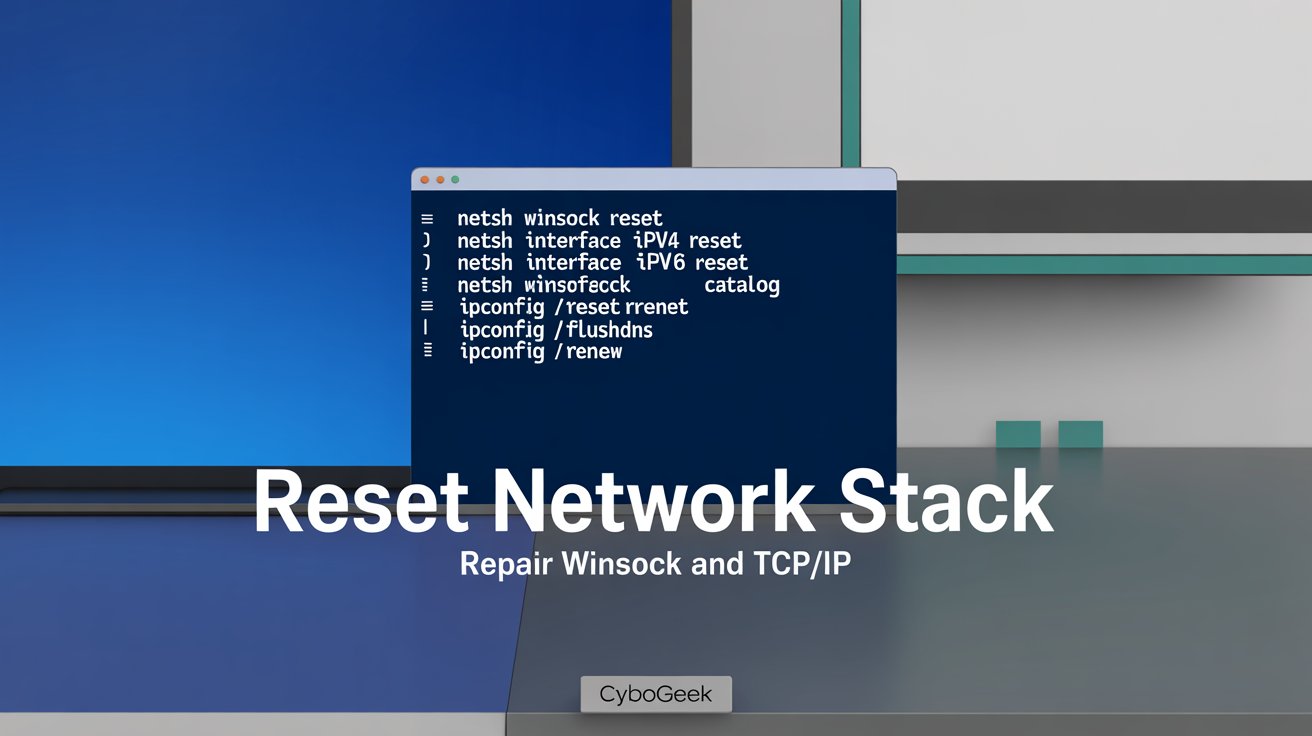
Open Command Prompt as Administrator, then run these commands one by one:
netsh winsock reset

netsh interface ipv4 reset

netsh interface ipv6 reset

netsh winsock reset catalog

ipconfig /release

ipconfig /flushdns

ipconfig /renew
These commands reset important network components and can fix broken socket behavior, stale DNS information, and damaged interface settings. Microsoft support replies use this exact style of repair for random Windows 11 Wi‑Fi disconnects.
Restart the PC afterward.
Fix 7: Change DNS manually
If websites stop loading even when Wi‑Fi says it is connected, the problem may be DNS rather than the wireless signal itself. Some troubleshooting guides recommend switching to a reliable public DNS provider to stabilize browsing and name resolution.
To test this:
- Open Network Connections or go through Settings > Network & internet.
- Open your Wi‑Fi connection properties.
- Edit DNS settings manually.
- Use:
-
-
Preferred DNS:
8.8.8.8 -
Alternate DNS:
8.8.4.4
-
This does not fix every disconnection issue, but it can help when the internet appears unstable even though the signal is present.
Also read: How to Fix Windows 11 Update Problems in 2026
Fix 8: Use Network Reset
If nothing else works, Network Reset is one of the strongest built-in fixes. Microsoft includes this option in its broader networking support guidance, and many Windows 11 tutorials recommend it as a final but safe recovery step.
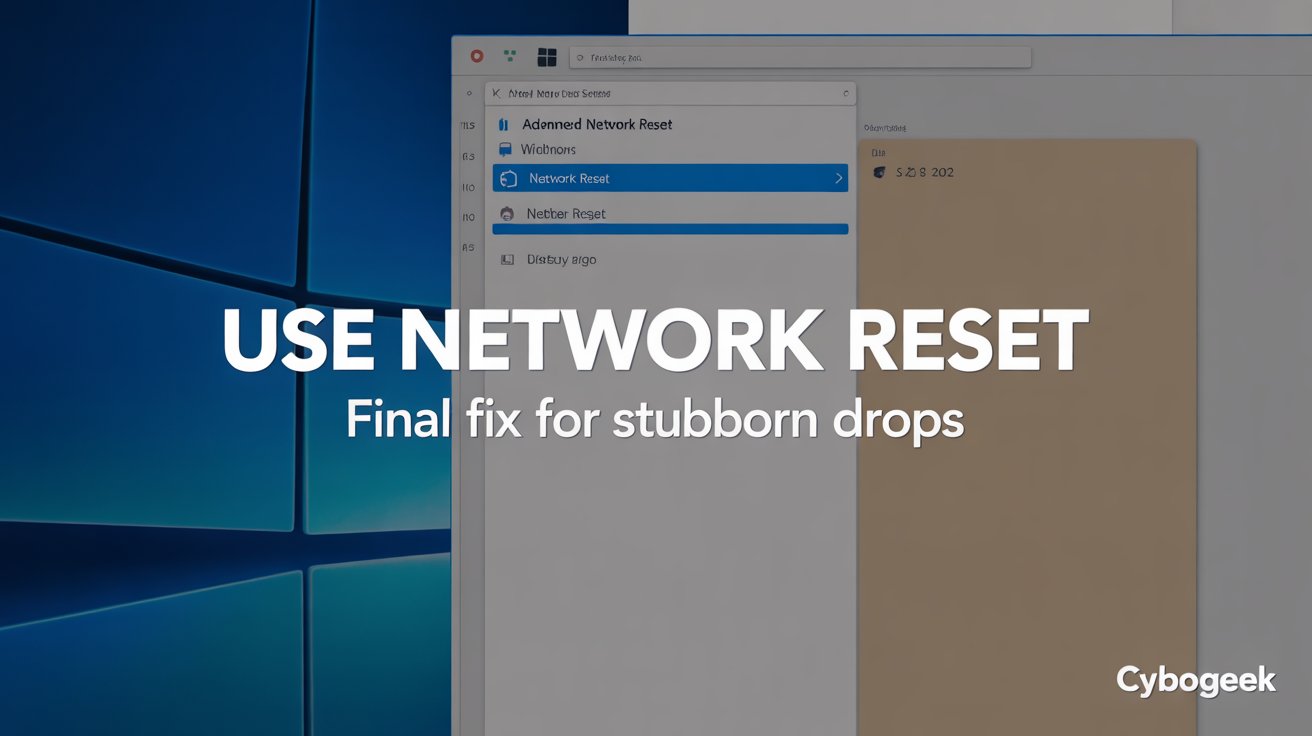
To do it:
- Open Settings.
- Go to Network & internet > Advanced network settings.
- Click Network reset.
- Select Reset now.
- Restart the PC.
This removes and reinstalls network adapters and resets networking components to default settings.
If Wi‑Fi started disconnecting after a Windows update
If the issue began right after a Windows update, do not ignore that timing. Some users specifically report post-update Wi‑Fi instability on Windows 11, and 2026 troubleshooting videos focus on update-related adapter behavior and power-management bugs.
In this case, try:
- rolling back the Wi‑Fi driver,
- checking optional driver updates in Windows Update,
- and testing after a network reset.
That sequence usually makes more sense than changing dozens of unrelated settings.
Best order to try the fixes
If you want the shortest practical path, follow this order:
- Restart the PC and router.
- Forget the Wi‑Fi network and reconnect.
- Run the Network and Internet troubleshooter.
- Disable Wi‑Fi power saving.
- Update or roll back the Wi‑Fi driver.
- Restart WLAN AutoConfig.
- Reset Winsock, TCP/IP, and DNS.
- Change DNS manually.
- Use Network Reset.
This order helps you avoid overcorrecting too early.
Common mistakes to avoid
These mistakes make Wi‑Fi troubleshooting harder than it needs to be:
- assuming the router is broken without testing other devices,
- reinstalling Windows before resetting the network,
- skipping driver rollback after an update,
- changing too many settings at once,
- and ignoring power management on laptops.
The most important idea is to test after each fix. That way, you know what actually solved the problem.
Final thoughts
Random Wi‑Fi disconnects on Windows 11 are frustrating, but they are usually fixable. In most cases, the cause is either a buggy driver, a power-saving setting, a damaged saved network profile, or a broken networking stack. Microsoft’s own support path and current troubleshooting patterns keep returning to those same areas because they solve the majority of real-world cases.
Read This: How to Fix Windows Search Not Working in 2026: Complete Step-by-Step Guide
If your PC is the only device dropping off the network, focus on the adapter, driver, and Windows settings first. If every device is disconnecting, focus on the router or ISP instead. That one distinction saves a lot of wasted time.