
If you are working with Python on Windows and suddenly see an error saying “pip is not recognized as an internal or external command”, it can be frustrating—especially when all you want to do is install a package and start coding. This issue is extremely common among beginners and even appears for users who already have Python installed.
The good news is that this problem is almost never serious. In most cases, it happens because Windows cannot locate the pip command, not because pip is broken or missing forever. Once you understand why the error appears, fixing it becomes a logical and repeatable process.
This guide explains what the error actually means, why it happens, and how to fix it step by step, even if you are completely new to Python and Windows command-line tools.
What “pip Is Not Recognized” Actually Means
When Windows displays this error, it is not saying that pip does not exist. Instead, it is saying:
“I don’t know where pip is located.”
On Windows, commands like pip, python, or git only work when their locations are listed in something called the PATH environment variable. PATH is simply a list of folders that Windows checks when you type a command in Command Prompt or PowerShell.
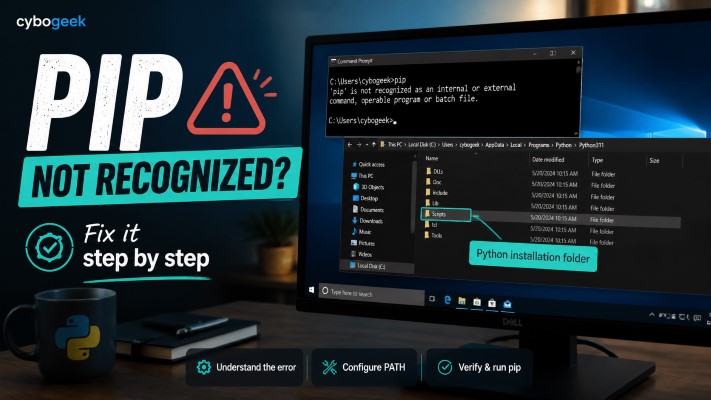
If the folder containing pip.exe is not listed in PATH, Windows will fail to find it—even if pip is correctly installed.
This is why the error is so common:
- Python may be installed
- pip may be installed
- but Windows does not know where to look
Understanding this concept makes the rest of the fixes much easier to follow.
Why This Problem Happens So Often on Windows
Unlike some operating systems where tools are automatically available, Windows relies heavily on PATH configuration. During Python installation, there is a small checkbox called “Add Python to PATH”. If this is skipped—even once—pip commands may stop working.
Other common reasons include:
- Python was installed from a custom location
- More than one Python version is installed
- The terminal was opened before PATH was updated
- Python was partially installed or upgraded incorrectly
None of these mean your system is broken. They simply mean Windows needs clearer instructions.
Step 1: Confirm That Python Is Installed
Before fixing pip, make sure Python itself is working.
Open Command Prompt or PowerShell, then type:
python --versionWhat the result means:
- Version number appears → Python is installed and responding
- Command not found → Python is missing or not added to PATH
If Python itself is not recognized, reinstall Python first and make sure PATH is enabled during setup. Fixing pip without Python working correctly is not possible.
Step 2: Try Using pip Through Python Directly
Even if the pip Command fails, pip may still exist and work internally.
Try this command instead:
python -m pip --versionIf this prints a version number, pip is installed and functional. The issue is only with the shortcut command, not pip itself.
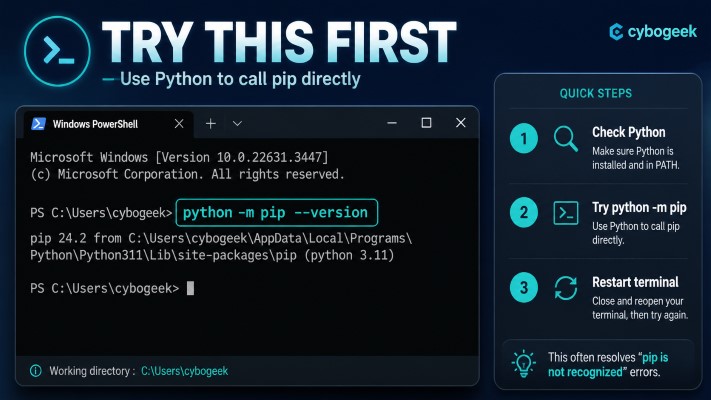
This method works because:
- Python directly loads pip as a module
- PATH is bypassed
- Windows does not need to find
pip.exe
You can also install packages this way:
python -m pip install requestsMany experienced developers prefer this approach because it is more reliable when multiple Python versions exist.
Step 3: Understand Where pip Lives on Windows
On Windows, pip is stored inside a folder called Scripts, which lives inside the main Python directory.
Typical locations look like this:
C:\Users\YourName\AppData\Local\Programs\Python\Python3xx\Scriptsor
C:\Python3xx\ScriptsInside this folder, you should see:
pip.exepip3.exe- other related tools
If Windows does not know about this folder, it cannot run pip—even though the file exists.
Step 4: Add Python and Scripts to the PATH Variable
This is the most common and most effective fix.
How to add PATH correctly on Windows
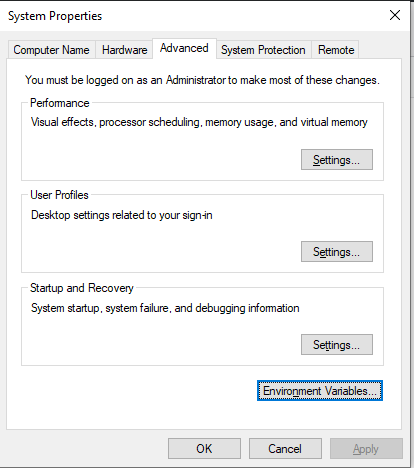
- Open the Start Menu
- Search for Environment Variables
- Click Edit the system environment variables
- Select Environment Variables
- Under System variables, find Path
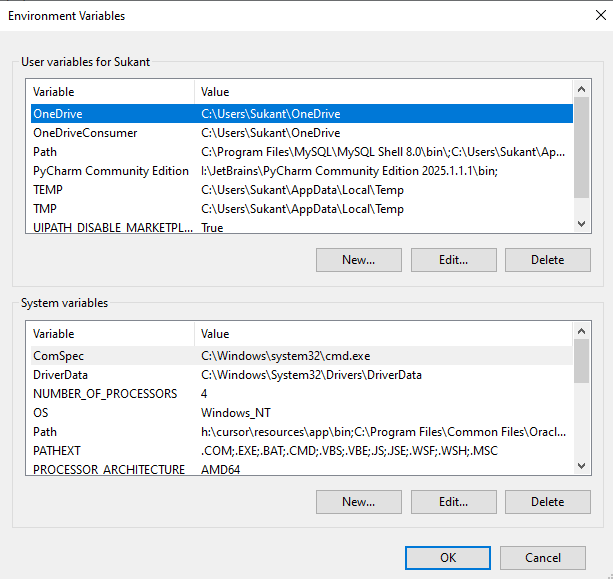
- Click Edit
- Add:
- The main Python folder
- The Python Scripts folder
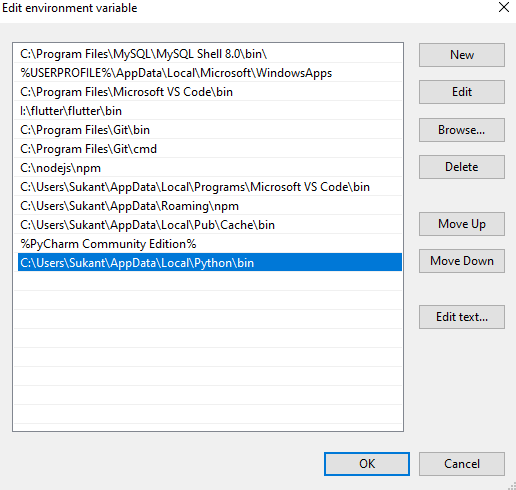
- Click OK on all windows
- Close all terminals
After doing this, Windows will know where to find both Python and pip.
Important note
Always open a new terminal window after changing PATH. Existing terminals will not see the update.
Step 5: Test pip Again After Updating PATH
Open a new Command Prompt and type:
pip --versionIf PATH is set correctly, Windows should now find pip and display its version.
If it still does not work, do not panic. There are still reliable fixes available.
Step 6: Reinstall Python the Right Way (Recommended Fix)
If your setup feels messy or inconsistent, reinstalling Python is often faster than troubleshooting every detail.
During installation, make sure you:
- Check Add Python to PATH
- Ensure pip is selected in optional features
- Use the default installation location unless you have a reason not to
After installation:
- Restart your computer (recommended)
- Open a new terminal
- Test both
python --versionandpip --version
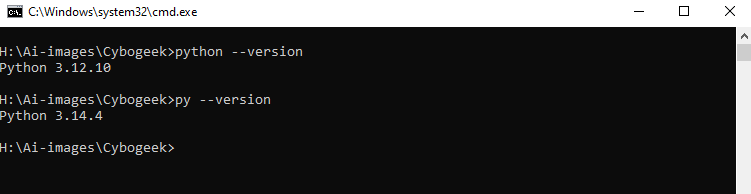
A clean reinstall resolves most PATH-related issues in minutes.
Step 7: Use the Python Launcher on Windows
Windows often installs a tool called the Python launcher, which helps manage multiple versions.
Try:
py --versionIf it works, you can also use:
py -m pip install numpyThis approach avoids confusion when:
- Multiple Python versions exist
- PATH points to the wrong interpreter
- pip commands behave inconsistently
It is especially helpful on systems used for learning or experimentation.
Step 8: Check whether pip Is Actually Installed
In rare cases, pip may not be installed at all.
You can check by navigating to your Python folder and opening the Scripts directory. If pip.exe is missing, pip was not installed correctly.
To fix this:
- Rerun the Python installer
- Choose Modify
- Enable pip
- Complete the setup
Once installed, repeat the PATH check and restart the terminal.
Quick Fix Checklist (For Fast Troubleshooting)
If you want the shortest solution path, follow this order:
- Check
python --version - Try
python -m pip --version - Add Python and Scripts to PATH
- Restart terminal
- Reinstall Python if needed
This sequence fixes most systems without advanced steps.
Common Mistakes That Cause This Error
Many users run into the same problems repeatedly. Avoid these mistakes:
- Installing Python from unofficial websites
- Skipping “Add Python to PATH”
- Installing packages without activating a virtual environment
- Using old terminal windows after changing settings
- Mixing multiple Python versions without knowing which one is active
Being aware of these issues prevents future errors and saves time.
How Virtual Environments Affect pip
When using virtual environments, pip behaves differently.
If your virtual environment is not activated, pip installs packages globally.
If it is activated, pip installs packages inside that environment only.
This is normal behavior and not an error.
If pip suddenly “disappears,” check whether:
- The environment is activated
- The terminal is using the correct interpreter
Understanding this avoids confusion when switching between projects.
Final Thoughts
Seeing “pip is not recognized” on Windows can feel intimidating, but it is almost always a configuration issue—not a failure. Once PATH is set correctly or Python is reinstalled properly, pip becomes stable and predictable.
The most important takeaway is this:
- pip is rarely broken
- Windows just needs clear instructions
After fixing this issue once, you will rarely face it again. And once pip works properly, installing libraries, building projects, and learning Python becomes much smoother and more enjoyable.