Installing Python on Windows should be simple, but for many beginners, it quickly becomes confusing. Between choosing the right download, understanding installer options, dealing with PATH settings, and testing the installation, it’s easy to feel stuck before you even write your first line of code.
If you have ever searched for “Python is not recognized as an internal or external command” after installing Python, you are not alone. This is one of the most common beginner problems—and it usually comes from a small setup mistake.
This guide walks you through the entire Python installation process on Windows, step by step, using clear explanations and beginner-friendly language. By the end of this article, you will not only have Python installed correctly, but you will also understand why each step matters so that you can avoid problems later.
The goal is simple:
Install Python once, install it correctly, and start coding without frustration.
What You Need Before Starting
Before installing Python, make sure you have a few basic things ready. You do not need advanced technical knowledge or special tools.
You will need:
- A Windows computer (Windows 10 or Windows 11 recommended)
- A stable internet connection
- Permission to install software on your system
- A modern web browser such as Chrome, Edge, or Firefox
- About 5–10 minutes of uninterrupted time
That’s it. You do not need to create an account, pay for anything, or download additional software at this stage.
For most beginners, the official Python installer from python.org is the safest and most reliable option. This is the source recommended by Python itself and supported by Microsoft for Windows users.
Step 1: Download Python for Windows
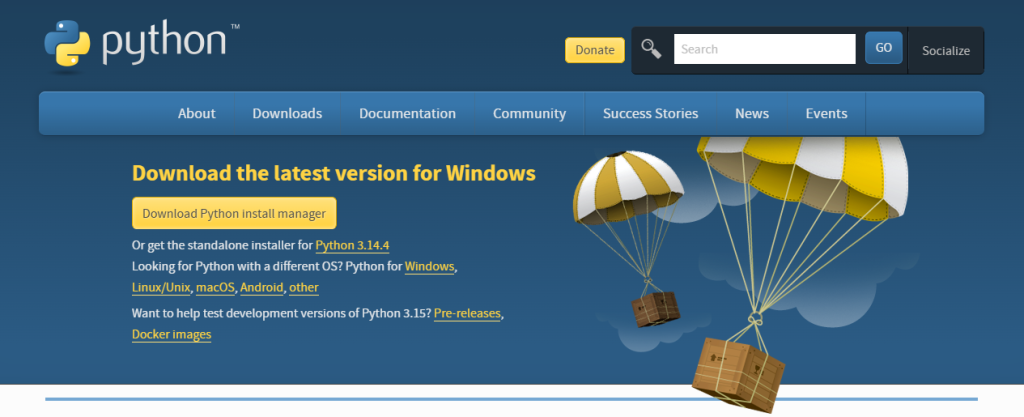
The first step is to download Python from the official source.
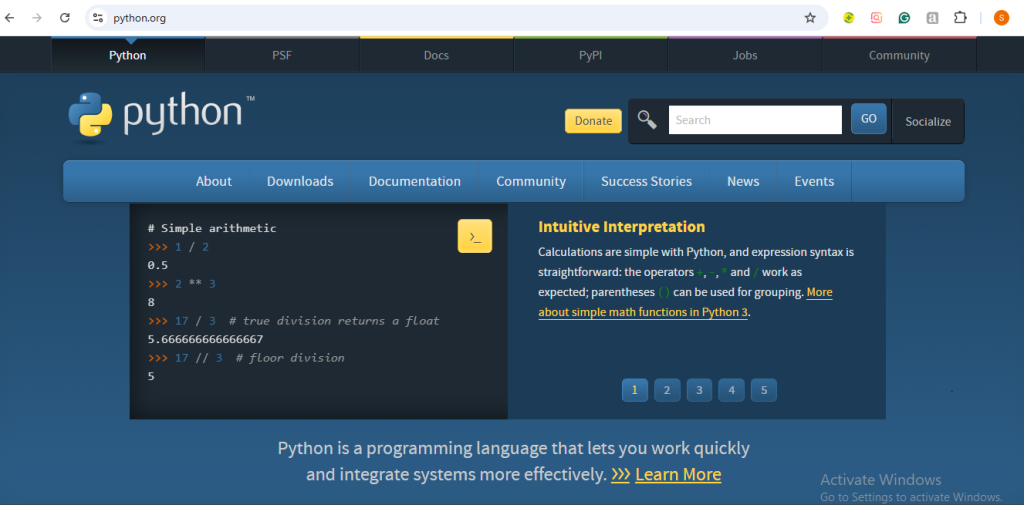
Open your browser and go to the Python Downloads for Windows page on python.org. This page always shows the latest stable release, which is what beginners should use. Avoid beta or pre-release versions unless you know exactly why you need them.
Which version should you download?
- Choose Windows installer (64-bit)
- This is the correct option for almost all modern computers
- Only use 32-bit if you are certain your system requires it
Most Windows systems today are 64-bit, so if you are unsure, go with the 64-bit installer. This version offers better performance and compatibility with modern libraries.
⚠️ Important warning:
Avoid downloading Python from third-party websites. Unofficial installers can be outdated, incomplete, or bundled with unwanted software. Always use python.org.
Step 2: Run the Python Installer (Very Important Step)
Once the download finishes, locate the installer file (usually in your Downloads folder) and double-click it to begin the setup.
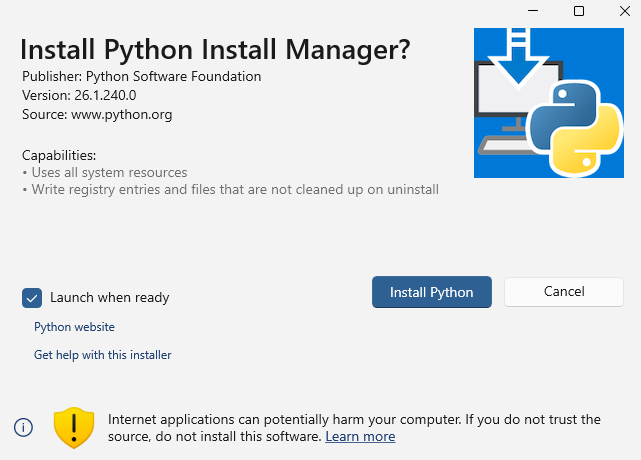
This screen is where many beginners feel nervous—but don’t worry. You only need to focus on one critical option.
Check “Add python.exe to PATH.”
On the first installer screen, you will see a checkbox that says:
“Add python.exe to PATH.”
✅ Make sure this box is checked before clicking anything else.
This step is extremely important.
Why does PATH matter?
PATH allows Windows to find Python when you type python in Command Prompt or Terminal.
If you skip this step, Python will still install, but Windows won’t know where it is—leading to errors later.
Most Python installation problems come from forgetting this one checkbox.
** The latest installer may set the Path Variable without asking, so read the instructions carefully.
Step 3: Choose the Right Install Option
After checking “Add python.exe to PATH,” you will see two main options:
- Install Now
- Customize installation
Which one should beginners choose?
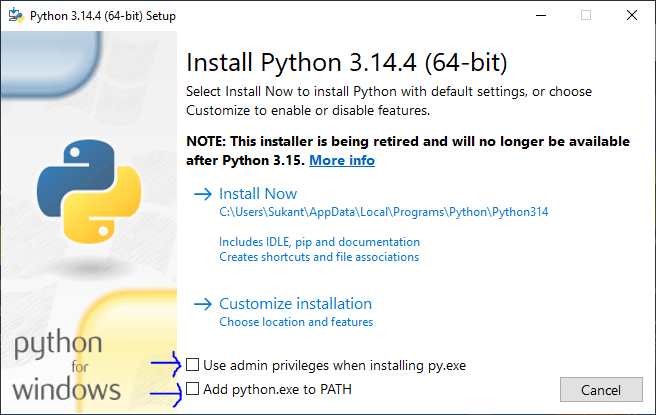
👉 Choose “Install Now.”
This option installs:
- Python itself
- pip (Python’s package manager)
- Standard libraries
- Required system tools
It is more than enough for:
- Learning Python basics
- Writing scripts
- Beginner projects
- Web development
- Automation
- Data analysis learning
Should you use “Customize installation”?
Only use this if:
- You already understand Python environments
- You need Python in a specific folder
- You are following an advanced setup guide
For first-time users, customizing options often causes unnecessary confusion. Stick with the default installation path.
Step 4: Wait for Installation to Finish
After clicking Install Now, Python will begin copying files and configuring your system.
This usually takes less than a minute on most computers.
During installation:
- Windows may ask for administrator permission
- Click Yes if prompted
- Do not close the installer window early
Once completed, you should see a success message confirming that Python was installed successfully.
At this point, Python is installed—but we still need to verify it works correctly.
Step 5: Verify Python Installation Using Terminal
Verification is the step many beginners skip—and later regret. Let’s do it properly.
Open Command Prompt or Windows Terminal
- Press
Win + R, typecmd, and press Enter
OR - Open Windows Terminal from the Start menu
Check Python version
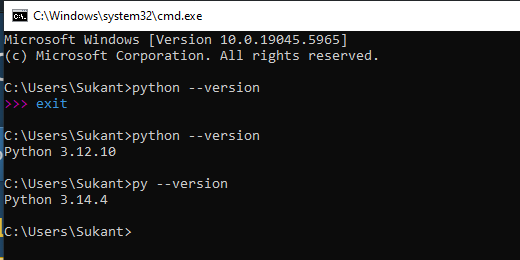
Type the following command and press Enter:
python --version
Python 3.x.x
- Python is installed
- PATH is working correctly
- The terminal can access Python
Both Python’s official Windows documentation and Microsoft’s guidance recommend verifying Python this way.
Open the Python interpreter
Now type:
python
If everything is working, you will see the Python interactive prompt (>>>).
This means Python is ready to accept commands.
To exit, type:
exit()
Step 6: Test Python with a Small Program
Testing Python with an actual file ensures that everything works end-to-end.
Create a test file
- Open Notepad, VS Code, or any text editor
- Type the following:
print("Hello, Python!")
- Save the file as
hello.py
(Make sure it does not becomehello.py.txt)
Run the file
Open Command Prompt in the folder where the file is saved and run:
python hello.py
If you see:
Hello, Python!
Congratulations!
Your Python installation is working perfectly.
Common Python Installation Mistakes to Avoid
Most installation problems come from a few small but common mistakes. Knowing them in advance can save hours of frustration.
Most common beginner mistakes
- Forgetting to check Add python.exe to PATH
- Downloading Python from unofficial websites
- Installing Python, but not verifying it in the terminal
- Using the wrong installer type
- Closing the installer before it finishes
- Typing
pythonbefore restarting the terminal - Confusing
pythonwithpy(they behave differently)
Python not recognized?
If you see an error like:
python is not recognized as an internal or external command
The fastest fix is:
- Reinstall Python
- Make sure PATH is checked
- Restart Command Prompt
Microsoft Store Python Option (Should You Use It?)
Windows sometimes suggests installing Python through the Microsoft Store. While this option works, it can behave differently from the official installer.
Pros
- Easy installation
- No admin permissions needed
Cons
- Less control over Python location
- Can cause confusion with PATH
- Not ideal for tutorials or development guides
For learning, blogging, and teaching, the official python.org installer is the clearer and safer choice.
What to Do After Installing Python
Once Python is installed, you are ready to move forward.
Recommended next steps:
- Install Visual Studio Code for Python development
- Learn how to run scripts properly
- Create your first project folder
- Understand packages and pip
- Learn virtual environments
If you are building a Python learning path, you should also read these:
- 25 Common Python Errors Beginners Face and How to Fix Them
- How to Create a Virtual Environment in Python
- How to Install VS Code for Python Development
- Python vs JavaScript for Beginners
Final Thoughts
Installing Python on Windows need not be confusing or overwhelming.
If you:
- Download Python from the official source
- Check Add python.exe to PATH
- Use the default installer
- Verify installation from the terminal
You will have a clean, reliable Python setup that works exactly as expected.
Once Python is installed correctly, learning becomes much easier. You can stop worrying about setup problems and focus on what really matters—writing code, solving problems, and building projects.
Python is beginner-friendly, powerful, and widely used. A proper installation is your first confident step into that world.